Quickly Setup a Development Web Server in Visual Studio Code Using Live Server
· One min read

Live Server is a Visual Studio Extension that saves a lot of time for me. Initial days, when I need to run a website from live server using a url like http://localhost, I depended on apache server. Sometimes I tried Google extension called 200 Ok.
In order to install this extension, we need to open Visual Studio Code. Then take Extensions tab and search for Live Server.
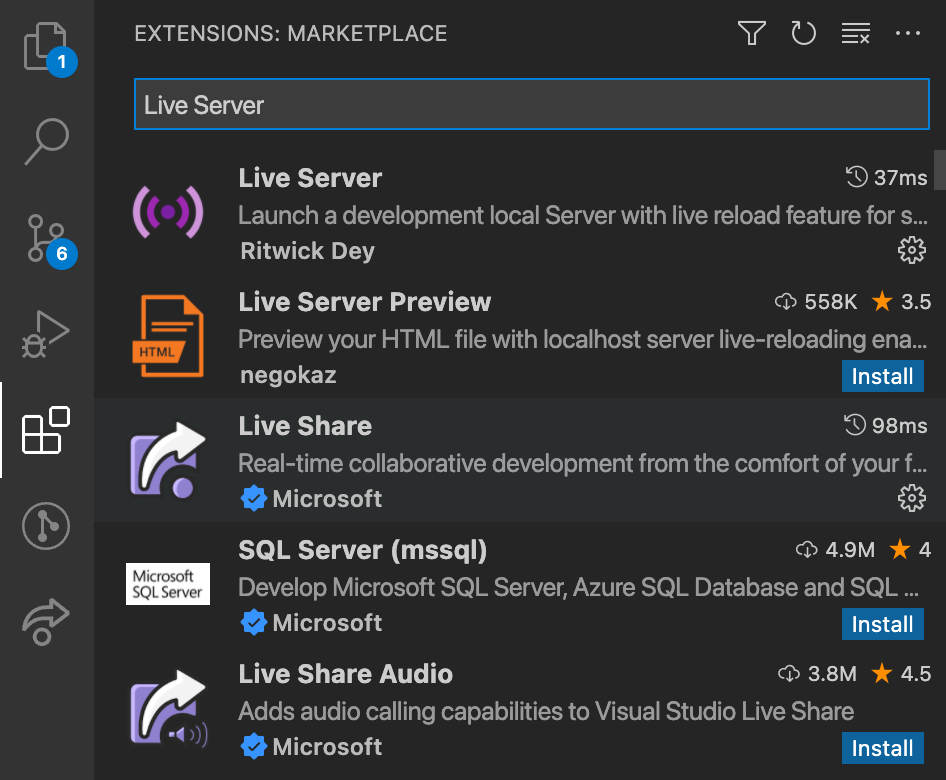
Then choose the one shown below and click the Install button. In my case, I have already installed. That is why it is showing Uninstall button in the screenshot.

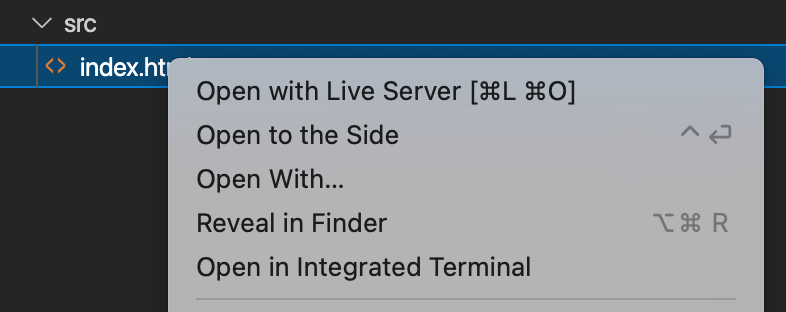
Once the extension is installed, we can easily open a file using Live Server by right clicking the file and open it with Live Server.