30 posts tagged with "web"

View All Tags

Google Social Login in Headless Shopify Using Better-Auth and Next.js

· 11 min read

Social login has become a standard feature in modern e-commerce applications, offering users a convenient way to sign in without creating new credentials. In this article, we'll explore how to implement Google Social Login in a headless Shopify storefront using Better-Auth and Shopify Multipass.

Note: The live demo site uses a Shopify Partner development store which doesn't support Multipass (Multipass is only available on Shopify Plus plans). However, the complete working implementation of Google social login is available in the GitHub repository. You can refer to the codebase for a fully functional example.

What is Shopify Multipass?

Shopify Multipass is a feature available on Shopify Plus that allows you to authenticate customers from an external identity provider. When a user signs in through a third-party service (like Google), you generate a Multipass token that Shopify uses to create or sign in the customer automatically.

How Multipass Works

  1. User authenticates with Google (or another OAuth provider)
  2. Your application receives the user's email from Google
  3. You generate a Multipass token using the user's email
  4. Exchange the Multipass token with Shopify for a customer access token
  5. Store the customer access token in a secure cookie for subsequent requests

Prerequisites

Before implementing Google social login, ensure you have:

  1. Better-Auth Setup: Basic Better-Auth configuration in your Next.js application
  2. Shopify Plus Account: Multipass is only available on Shopify Plus plans
  3. Multipass Enabled: Enable Multipass in your Shopify admin settings and obtain the secret key
  4. Google OAuth Credentials: Google Cloud project with OAuth 2.0 credentials configured

If you haven't set up basic Better-Auth authentication yet, check out the article on implementing authentication in headless Shopify.

Step 1: Configure Environment Variables

Add the required environment variables for Google OAuth and Shopify Multipass:

# .env
BETTER_AUTH_URL=http://localhost:3000
BETTER_AUTH_SECRET=your_better_auth_secret

# Google OAuth
GOOGLE_CLIENT_ID=your_google_client_id
GOOGLE_CLIENT_SECRET=your_google_client_secret

# Shopify Multipass
SHOPIFY_MULTIPASS_SECRET=your_shopify_multipass_secret

Getting Google OAuth Credentials

  1. Go to Google Cloud Console
  2. Create a new project or select an existing one
  3. Navigate to APIs & Services > Credentials
  4. Click Create Credentials > OAuth client ID
  5. Configure the OAuth consent screen
  6. Set the application type to Web application
  7. Add authorized redirect URIs:
    • http://localhost:3000/api/auth/callback/google (for development)
    • https://yourdomain.com/api/auth/callback/google (for production)

Getting Shopify Multipass Secret

  1. Log in to your Shopify admin
  2. Navigate to Settings > Customer accounts
  3. Enable Multipass (requires Shopify Plus)
  4. Copy the Multipass secret key

Step 2: Configure Better-Auth with Google Provider

Update your Better-Auth configuration to include the Google social provider:

// src/lib/auth.ts
import { betterAuth } from "better-auth";
import { nextCookies } from "better-auth/next-js";
import { shopifyAuthPlugin } from "@/lib/shopify-auth-plugin";

export const auth = betterAuth({
baseURL: process.env.BETTER_AUTH_URL,
plugins: [nextCookies(), shopifyAuthPlugin()],
// 👇 Google OAuth configuration
socialProviders: {
google: {
clientId: process.env.GOOGLE_CLIENT_ID as string,
clientSecret: process.env.GOOGLE_CLIENT_SECRET as string,
},
},
// 👆 Add your Google credentials here
});

This configuration:

  • Enables the Google OAuth provider
  • Uses nextCookies() for cookie management in Next.js
  • Includes the custom shopifyAuthPlugin for Shopify-specific auth flows
Important Configuration

The socialProviders.google object is where you configure Google OAuth. Make sure to add your Google Client ID and Client Secret from the Google Cloud Console.

Step 3: Create the Multipass Token Generator

Create a utility function to generate Multipass tokens:

// src/lib/shopify/multipass.ts
import Multipassify from "multipassify";

export const SHOPIFY_MULTIPASS_SECRET = process.env.SHOPIFY_MULTIPASS_SECRET;

export function generateMultipassToken(email: string): string {
if (!SHOPIFY_MULTIPASS_SECRET) {
throw new Error("SHOPIFY_MULTIPASS_SECRET is not configured.");
}

const multipassify = new Multipassify(SHOPIFY_MULTIPASS_SECRET);

return multipassify.encode({ email });
}

Install the multipassify package:

pnpm add multipassify
# or
npm install multipassify

Step 4: Create the Multipass Integration

Create a GraphQL mutation to exchange the Multipass token for a Shopify customer access token:

# src/integrations/shopify/customer-access-token-create-with-multipass/
# customer-access-token-create-with-multipass.shopify.graphql

mutation customerAccessTokenCreateWithMultipass($multipassToken: String!) {
customerAccessTokenCreateWithMultipass(multipassToken: $multipassToken) {
customerAccessToken {
accessToken
expiresAt
}
customerUserErrors {
message
field
}
}
}

Create the integration function:

// src/integrations/shopify/customer-access-token-create-with-multipass/index.ts
import {
CustomerAccessTokenCreateWithMultipassDocument,
CustomerAccessTokenCreateWithMultipassMutation,
CustomerAccessTokenCreateWithMultipassMutationVariables,
} from "@/generated/shopifySchemaTypes";
import createApolloClient from "@/integrations/shopify/shopify-apollo-client";

export const customerAccessTokenCreateWithMultipass = async (
multipassToken: string,
): Promise<CustomerAccessTokenCreateWithMultipassMutation | undefined> => {
try {
const client = createApolloClient();
const { data } = await client.mutate<
CustomerAccessTokenCreateWithMultipassMutation,
CustomerAccessTokenCreateWithMultipassMutationVariables
>({
mutation: CustomerAccessTokenCreateWithMultipassDocument,
variables: { multipassToken },
});

if (!data) {
throw new Error(
"No data returned from customerAccessTokenCreateWithMultipass mutation",
);
}

return data;
} catch (error) {
console.error(
"Error creating customer access token with multipass:",
error,
);
}
};

Step 5: Create the Multipass API Endpoint

Create a Next.js API route that handles the Multipass authentication flow:

// src/app/api/shopify/multipass/route.ts
import { NextResponse } from "next/server";
import { z } from "zod";

import { customerAccessTokenCreateWithMultipass } from "@/integrations/shopify/customer-access-token-create-with-multipass";
import { generateMultipassToken } from "@/lib/shopify/multipass";

const requestSchema = z.object({
email: z.string(),
});

export async function POST(request: Request) {
const parsed = requestSchema.safeParse(
await request.json().catch(() => ({})),
);

if (!parsed.success) {
return NextResponse.json(
{ error: "Invalid request body." },
{ status: 400 },
);
}

const { email } = parsed.data;

let multipassToken: string;

try {
multipassToken = generateMultipassToken(email);
} catch (error) {
console.error("Error generating multipass token:", error);
return NextResponse.json(
{ error: "Multipass is not configured." },
{ status: 500 },
);
}

try {
const result = await customerAccessTokenCreateWithMultipass(multipassToken);
const payload = result?.customerAccessTokenCreateWithMultipass;
const userErrors = payload?.customerUserErrors ?? [];
const token = payload?.customerAccessToken?.accessToken;
const expiresAt = payload?.customerAccessToken?.expiresAt;

if (userErrors.length || !token) {
return NextResponse.json(
{ error: userErrors[0]?.message || "Unable to create access token." },
{ status: 401 },
);
}

const response = NextResponse.json({ accessToken: token, expiresAt });

response.cookies.set("shopifyCustomerAccessToken", token, {
httpOnly: true,
secure: process.env.NODE_ENV === "production",
sameSite: "lax",
path: "/",
expires: expiresAt ? new Date(expiresAt) : undefined,
});

return response;
} catch (error) {
console.error("Error creating access token with multipass:", error);
return NextResponse.json(
{ error: "Unable to create access token." },
{ status: 500 },
);
}
}

This endpoint:

  1. Receives the user's email from the client
  2. Generates a Multipass token
  3. Exchanges it for a Shopify customer access token
  4. Stores the token in an HTTP-only cookie
  5. Returns the token and expiration to the client

Step 6: Create the Login Page with Google Sign-In

Now create the login page that integrates Google OAuth:

// src/app/account/login/page.tsx
"use client";

import React, { useCallback, useEffect, useState } from "react";
import Link from "next/link";
import { authClient } from "@/lib/auth-client";
import Cookies from "js-cookie";

export default function LoginPage() {
const { data: session } = authClient.useSession();
const [loading, setLoading] = useState(false);
const [googleLoading, setGoogleLoading] = useState(false);
const [processedSocialEmail, setProcessedSocialEmail] = useState<
string | null
>(null);
const [error, setError] = useState<string | null>(null);

const updateCartBuyerIdentity = useCallback(async () => {
const cartId = Cookies.get("cart_id");
if (!cartId) {
return;
}

await fetch("/api/shopify/cart-buyer-identity", {
method: "POST",
headers: {
"Content-Type": "application/json",
},
body: JSON.stringify({ cartId }),
});
}, []);

useEffect(() => {
const socialEmail = session?.user?.email;

if (!socialEmail || socialEmail === processedSocialEmail) {
return;
}

let cancelled = false;

async function authenticateSocialUserWithMultipass() {
setGoogleLoading(true);
setError(null);

try {
const response = await fetch("/api/shopify/multipass", {
method: "POST",
headers: {
"Content-Type": "application/json",
},
body: JSON.stringify({ email: socialEmail }),
});

const payload = (await response.json().catch(() => ({}))) as {
error?: string;
};

if (!response.ok) {
throw new Error(payload.error || "Unable to sign in with Google.");
}

if (cancelled) {
return;
}

setProcessedSocialEmail(socialEmail);
await updateCartBuyerIdentity();
window.location.href = "/";
} catch (err) {
if (cancelled) {
return;
}

setError(
err instanceof Error ? err.message : "Unable to sign in with Google.",
);
} finally {
if (!cancelled) {
setGoogleLoading(false);
}
}
}

authenticateSocialUserWithMultipass();

return () => {
cancelled = true;
};
}, [processedSocialEmail, session?.user?.email, updateCartBuyerIdentity]);

async function onGoogleSignIn() {
setError(null);
setGoogleLoading(true);

try {
const socialSignInResult = await authClient.signIn.social({
provider: "google",
callbackURL: "/account/login",
});

const socialSignInError = (
socialSignInResult as { error?: { message?: string } }
)?.error?.message;

if (socialSignInError) {
setError(socialSignInError || "Unable to start Google sign in.");
}
} catch {
setError("Unable to start Google sign in.");
} finally {
setGoogleLoading(false);
}
}

async function onSubmit(e: React.FormEvent<HTMLFormElement>) {
e.preventDefault();
setError(null);
setLoading(true);

const form = e.currentTarget;
const email = (form.elements.namedItem("email") as HTMLInputElement).value;
const password = (form.elements.namedItem("password") as HTMLInputElement)
.value;

try {
const shopifyAuth = await authClient.shopifySignIn({
email,
password,
});

const shopifyError = (shopifyAuth as { error?: { message?: string } })
?.error?.message;
if (shopifyError) {
setError(shopifyError || "Invalid email or password.");
return;
}

const shopifyData = (shopifyAuth as { data?: { ok?: boolean } })?.data;
if (!shopifyData?.ok) {
setError("Invalid email or password.");
return;
}

await updateCartBuyerIdentity();

window.location.href = "/";
} catch {
setError("Unable to sign in. Please try again.");
} finally {
setLoading(false);
}
}

return (
<div className="border-box px-5 py-8 lg:px-10 min-h-[60vh] flex items-center justify-center">
<div className="w-full max-w-md">
<h1 className="text-2xl font-semibold text-gray-900 text-center mb-8 ">
Login
</h1>
<form className="flex flex-col gap-4" onSubmit={onSubmit}>
<div className="flex flex-col gap-2">
<label htmlFor="email" className="text-gray-900">
Email
</label>
<input
type="email"
id="email"
name="email"
className="border border-gray-200 px-4 py-2 text-gray-900 focus:outline-none focus:border-gray-400"
placeholder="you@example.com"
required
/>
</div>
<div className="flex flex-col gap-2">
<label htmlFor="password" className="text-gray-900">
Password
</label>
<input
type="password"
id="password"
name="password"
className="border border-gray-200 px-4 py-2 text-gray-900 focus:outline-none focus:border-gray-400"
placeholder="••••••••"
required
/>
</div>

{error && (
<p className="text-sm text-red-600" role="alert">
{error}
</p>
)}

<button
type="submit"
disabled={loading || googleLoading}
className="mt-4 bg-gray-900 text-white py-3 px-4 hover:bg-gray-800 transition-colors cursor-pointer uppercase disabled:opacity-60"
>
{loading ? "Signing In..." : "Sign In"}
</button>

<button
type="button"
onClick={onGoogleSignIn}
disabled={loading || googleLoading}
className="border border-gray-900 text-gray-900 py-3 px-4 hover:bg-gray-100 transition-colors cursor-pointer uppercase disabled:opacity-60"
>
{googleLoading
? "Signing In With Google..."
: "Sign In with Google"}
</button>
</form>
<div className="mt-6 flex flex-col items-center gap-4">
<Link
href="/account/forgot-password"
className="text-gray-600 hover:text-gray-900 font-light"
>
Forgot your password?
</Link>
<p className="text-gray-500 font-light">
Don&apos;t have an account?{" "}
<Link
href="/account/register"
className="text-gray-600 hover:text-gray-900 font-light"
>
Create one
</Link>
</p>
</div>
</div>
</div>
);
}

Key Implementation Details

  1. Session Monitoring: The useEffect hook watches for Better-Auth session changes after Google OAuth callback
  2. Multipass Authentication: When a Google email is detected, it triggers the Multipass flow
  3. Cart Association: After successful authentication, the cart is associated with the logged-in customer
  4. Error Handling: Comprehensive error handling for both OAuth and Multipass flows
  5. Duplicate Prevention: The processedSocialEmail state prevents duplicate Multipass calls

Step 7: Create a Session Provider (Optional)

Create a session provider to manage user state across your application:

// src/providers/session-provider.tsx
"use client";

import {
createContext,
useCallback,
useContext,
useEffect,
useState,
} from "react";
import { getCurrentUser } from "@/lib/shopify/getCurrentUser";

type SessionUser = Awaited<ReturnType<typeof getCurrentUser>>;

type SessionContextValue = {
user: SessionUser;
loading: boolean;
error: string | null;
refresh: () => Promise<void>;
};

const SessionContext = createContext<SessionContextValue | undefined>(
undefined,
);

export function SessionProvider({ children }: { children: React.ReactNode }) {
const [user, setUser] = useState<SessionUser>(null);
const [loading, setLoading] = useState(true);
const [error, setError] = useState<string | null>(null);

const refresh = useCallback(async () => {
try {
setLoading(true);
setError(null);
const currentUser = await getCurrentUser();
setUser(currentUser);
} catch (err) {
setError(err instanceof Error ? err.message : "Failed to load user");
setUser(null);
} finally {
setLoading(false);
}
}, []);

useEffect(() => {
refresh();
}, [refresh]);

return (
<SessionContext.Provider value={{ user, loading, error, refresh }}>
{children}
</SessionContext.Provider>
);
}

export function useSession() {
const context = useContext(SessionContext);
if (!context) {
throw new Error("useSession must be used within a SessionProvider");
}
return context;
}

Create the getCurrentUser utility:

// src/lib/shopify/getCurrentUser.ts
export const getCurrentUser = async () => {
try {
const response = await fetch("/api/shopify/customer", {
credentials: "include",
headers: {
"Content-Type": "application/json",
},
});

if (!response.ok) {
if (response.status === 401) {
return null;
}
return null;
}

const data = await response.json();
const customer = data?.customer ?? null;

if (!customer) {
return null;
}

const name = [customer.firstName, customer.lastName]
.filter(Boolean)
.join(" ")
.trim();

return {
...customer,
name: name || undefined,
};
} catch {
return null;
}
};

Understanding the Flow

Let's break down what happens when a user clicks "Sign In with Google":

Step 1: OAuth Initiation

authClient.signIn.social({
provider: "google",
callbackURL: "/account/login",
});
  • User is redirected to Google's OAuth consent screen
  • User grants permission
  • Google redirects back to /account/login with auth tokens

Step 2: Better-Auth Session Creation

  • Better-Auth processes the OAuth callback automatically
  • Creates a session with user information (email, name, etc.)
  • The authClient.useSession() hook detects the new session

Step 3: Multipass Token Generation

const multipassToken = generateMultipassToken(email);
  • Extract email from Better-Auth session
  • Generate encrypted Multipass token using Shopify secret

Step 4: Shopify Customer Access Token

customerAccessTokenCreateWithMultipass(multipassToken);
  • Send Multipass token to Shopify
  • Shopify validates and returns customer access token
  • If customer doesn't exist, Shopify creates one automatically
response.cookies.set("shopifyCustomerAccessToken", token, {
httpOnly: true,
secure: process.env.NODE_ENV === "production",
sameSite: "lax",
path: "/",
});
  • Store Shopify customer token in HTTP-only cookie
  • Token is automatically included in subsequent requests

Conclusion

Implementing Google social login in a headless Shopify storefront requires coordinating several technologies:

  1. Better-Auth: Handles OAuth flow and session management
  2. Shopify Multipass: Bridges external authentication with Shopify customers
  3. Next.js API Routes: Orchestrates the authentication flow
  4. Secure Cookies: Stores authentication tokens safely

This architecture provides a secure, user-friendly authentication experience while maintaining compatibility with Shopify's customer system. The approach can be extended to other OAuth providers (GitHub, Facebook, etc.) using the same Multipass integration pattern.
Additional Resources

Implementing Forgot Password and Reset Password in Headless Shopify

· 11 min read

Password recovery is an essential feature for any e-commerce application. When users forget their passwords, they need a secure and straightforward way to reset them. In this article, we'll implement a complete forgot password and reset password flow for a headless Shopify storefront using Better-Auth and Next.js.

Live Demo: https://headless-shopify-site.vercel.app/

Prerequisites

This article builds upon the authentication system covered in Authentication in Headless Shopify Using Better-Auth and Next.js. Make sure you have:

  1. ✅ Next.js application with Better-Auth configured
  2. ✅ Shopify Customer API integration
  3. ✅ Custom Shopify auth plugin implemented
  4. ✅ Sign-in and sign-up functionality working

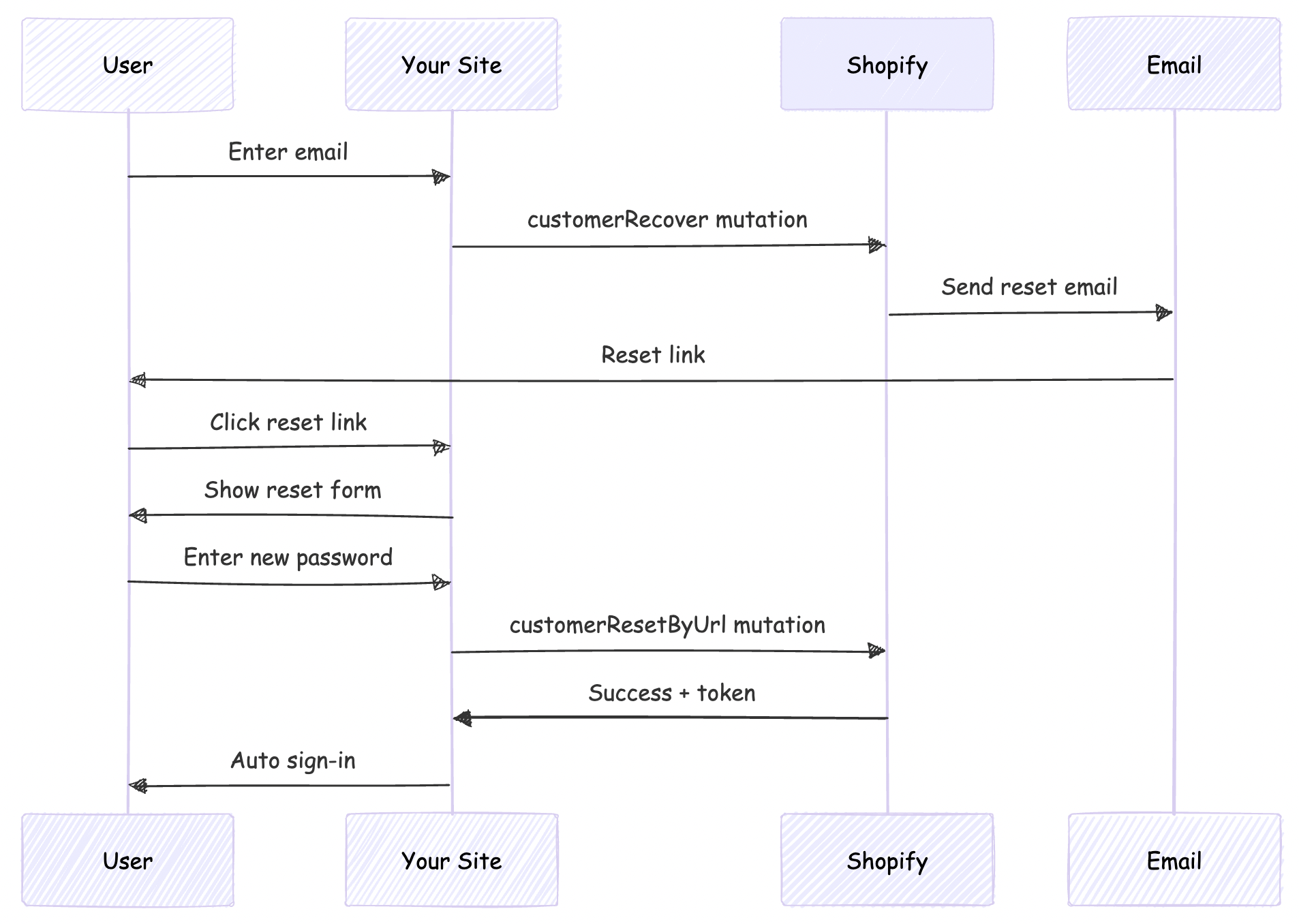
Understanding Shopify's Password Recovery Flow

Shopify provides two mutations for password recovery:

  1. customerRecover: Sends a password reset email to the customer
  2. customerResetByUrl: Resets the password using the URL from the email

The flow works like this:

Password Reset Flow

Reset Password Email URL

This scenario is applicable only if your headless site domain is different from that given as primary domain in Shopify

By default, Shopify's password reset emails point to the Shopify-hosted store (your-store.myshopify.com). For a headless storefront, we need these emails to point to your custom domain instead.

We'll solve this by:

  1. Customizing Shopify's email templates (discussed later in this post)
  2. Implementing a reset password page on our site
  3. Handling the reset flow with Better-Auth

Step 1: Create the Forgot Password GraphQL Mutation

First, create the GraphQL mutation file for customerRecover:

# src/integrations/shopify/customer-recover/customer-recover.shopify.graphql
mutation customerRecover($email: String!) {
customerRecover(email: $email) {
customerUserErrors {
message
field
}
}
}

This mutation triggers Shopify to send a password reset email to the customer.

Step 2: Create the Integration Function

Create the TypeScript integration function:

// src/integrations/shopify/customer-recover/index.ts
import {
CustomerRecoverDocument,
CustomerRecoverMutation,
CustomerRecoverMutationVariables,
} from "@/generated/shopifySchemaTypes";
import createApolloClient from "@/integrations/shopify/shopify-apollo-client";

export const customerRecover = async (
email: string,
): Promise<CustomerRecoverMutation | undefined> => {
try {
const client = createApolloClient();
const { data } = await client.mutate<
CustomerRecoverMutation,
CustomerRecoverMutationVariables
>({
mutation: CustomerRecoverDocument,
variables: { email },
});

if (!data) {
throw new Error("No data returned from customerRecover mutation");
}

return data;
} catch (error) {
console.error("Error sending password reset email:", error);
}
};

Note: Run your GraphQL codegen after creating the mutation file:

npm run codegen

Step 3: Add Forgot Password to Better-Auth Plugin

Update your Shopify auth plugin to include the forgot password endpoint:

Add Types

// src/lib/shopify-auth-plugin.ts
export type ShopifyForgotPasswordInput = {
email: string;
};

Add Validation Schema

import * as z from "zod";

const forgotPasswordSchema = z.object({
email: z.email().min(1),
});

Create the Endpoint

import { customerRecover } from "@/integrations/shopify/customer-recover";

export const shopifyAuthPlugin = () => {
return {
id: "shopify-auth",
endpoints: {
// ... existing signIn and signUp endpoints

forgotPassword: createAuthEndpoint(
"/shopify-auth/forgot-password",
{
method: "POST",
body: forgotPasswordSchema,
},
async (ctx) => {
const { email } = ctx.body;

const result = await customerRecover(email);

if (!result) {
throw new APIError("BAD_REQUEST", {
message: "Unable to send password reset email.",
});
}

const payload = result.customerRecover;
const userErrors = payload?.customerUserErrors ?? [];

if (userErrors.length) {
throw new APIError("BAD_REQUEST", {
message:
userErrors[0]?.message ||
"Unable to send password reset email.",
});
}

return ctx.json({ ok: true });
},
),
},
} satisfies BetterAuthPlugin;
};

Step 4: Add Client-Side Action

Update your auth client plugin to expose the forgot password action:

// src/lib/shopify-auth-client.ts
import type {
ShopifyForgotPasswordInput,
} from "@/lib/shopify-auth-plugin";

export const shopifyAuthClientPlugin = () => {
return {
id: "shopify-auth",
$InferServerPlugin: {} as ReturnType<typeof shopifyAuthPlugin>,
getActions: ($fetch) => {
return {
// ... existing shopifySignIn and shopifySignUp

shopifyForgotPassword: async (
data: ShopifyForgotPasswordInput,
fetchOptions?: BetterFetchOption,
) => {
return $fetch("/shopify-auth/forgot-password", {
method: "POST",
body: data,
...fetchOptions,
});
},
};
},
} satisfies BetterAuthClientPlugin;
};

Step 5: Create the Forgot Password Page

Create a user-friendly forgot password page:

// src/app/account/forgot-password/page.tsx
"use client";

import React, { useState } from "react";
import Link from "next/link";
import { authClient } from "@/lib/auth-client";

export default function ForgotPasswordPage() {
const [loading, setLoading] = useState(false);
const [error, setError] = useState<string | null>(null);
const [success, setSuccess] = useState(false);

async function onSubmit(e: React.FormEvent<HTMLFormElement>) {
e.preventDefault();
setError(null);
setSuccess(false);
setLoading(true);

const form = e.currentTarget;
const email = (form.elements.namedItem("email") as HTMLInputElement).value;

try {
const result = await authClient.shopifyForgotPassword({ email });

const shopifyError = (result as { error?: { message?: string } })?.error
?.message;
if (shopifyError) {
setError(shopifyError || "Unable to send password reset email.");
return;
}

const shopifyData = (result as { data?: { ok?: boolean } })?.data;
if (!shopifyData?.ok) {
setError("Unable to send password reset email.");
return;
}

setSuccess(true);
} catch {
setError("Unable to send password reset email. Please try again.");
} finally {
setLoading(false);
}
}

return (
<div className="border-box px-5 py-8 lg:px-10 min-h-[60vh] flex items-center justify-center">
<div className="w-full max-w-md">
<h1 className="text-2xl font-semibold text-gray-900 text-center mb-4">
Forgot Password
</h1>
<p className="text-gray-500 text-center mb-8 font-light">
Enter your email address and we'll send you a link to reset your
password.
</p>

{success ? (
<div className="bg-green-50 border border-green-200 text-green-800 px-4 py-3 rounded">
<p className="text-sm">
If an account exists with this email, you will receive a password
reset link shortly.
</p>
</div>
) : (
<form className="flex flex-col gap-4" onSubmit={onSubmit}>
<div className="flex flex-col gap-2">
<label htmlFor="email" className="text-gray-900">
Email
</label>
<input
type="email"
id="email"
name="email"
className="border border-gray-200 px-4 py-2 text-gray-900 focus:outline-none focus:border-gray-400"
placeholder="you@example.com"
required
/>
</div>

{error && (
<p className="text-sm text-red-600" role="alert">
{error}
</p>
)}

<button
type="submit"
disabled={loading}
className="mt-4 bg-gray-900 text-white py-3 px-4 hover:bg-gray-800 transition-colors cursor-pointer uppercase disabled:opacity-50 disabled:cursor-not-allowed"
>
{loading ? "Sending..." : "Send Reset Link"}
</button>
</form>
)}

<div className="mt-6 flex flex-col items-center gap-4">
<Link
href="/account/login"
className="text-gray-600 hover:text-gray-900 font-light"
>
Back to Login
</Link>
</div>
</div>
</div>
);
}

Step 6: Customize Shopify Email Template

This is the crucial step that redirects users to your site instead of Shopify's hosted store.

Access Email Templates

  1. Go to your Shopify Admin
  2. Navigate to SettingsNotifications
  3. Find Customer account password reset
  4. Click to edit the template

Update the Reset URL

Find the line containing the reset password link (typically):

{{ customer.reset_password_url }}

Replace it with:

https://your-vercel-domain.com/account/reset-password?url={{ customer.reset_password_url | url_encode }}

Example:

<!-- Before -->
<a href="{{ customer.reset_password_url }}">Reset your password</a>

<!-- After -->
<a href="https://headless-shopify-site.vercel.app/account/reset-password?url={{ customer.reset_password_url | url_encode }}">Reset your password</a>

Replace headless-shopify-site.vercel.app with your actual domain.

Step 7: Implement Password Reset Functionality

Now implement the actual password reset page that users land on after clicking the email link.

Create the GraphQL Mutation

# src/integrations/shopify/customer-reset-by-url/customer-reset-by-url.shopify.graphql
mutation customerResetByUrl($password: String!, $resetUrl: URL!) {
customerResetByUrl(password: $password, resetUrl: $resetUrl) {
customer {
id
email
firstName
lastName
}
customerAccessToken {
accessToken
expiresAt
}
customerUserErrors {
message
field
}
}
}

Create the Integration Function

// src/integrations/shopify/customer-reset-by-url/index.ts
import {
CustomerResetByUrlDocument,
CustomerResetByUrlMutation,
CustomerResetByUrlMutationVariables,
} from "@/generated/shopifySchemaTypes";
import createApolloClient from "@/integrations/shopify/shopify-apollo-client";

export const customerResetByUrl = async (
password: string,
resetUrl: string,
): Promise<CustomerResetByUrlMutation | undefined> => {
try {
const client = createApolloClient();
const { data } = await client.mutate<
CustomerResetByUrlMutation,
CustomerResetByUrlMutationVariables
>({
mutation: CustomerResetByUrlDocument,
variables: { password, resetUrl },
});

if (!data) {
throw new Error("No data returned from customerResetByUrl mutation");
}

return data;
} catch (error) {
console.error("Error resetting password:", error);
}
};

Run codegen again:

npm run codegen

Step 8: Add Reset Password to Auth Plugin

Add Types

// src/lib/shopify-auth-plugin.ts
export type ShopifyResetPasswordInput = {
password: string;
resetUrl: string;
};

Add Validation Schema

const resetPasswordSchema = z.object({
password: z.string().min(5),
resetUrl: z.string().url(),
});

Create the Endpoint

import { customerResetByUrl } from "@/integrations/shopify/customer-reset-by-url";

export const shopifyAuthPlugin = () => {
return {
id: "shopify-auth",
endpoints: {
// ... existing endpoints

resetPassword: createAuthEndpoint(
"/shopify-auth/reset-password",
{
method: "POST",
body: resetPasswordSchema,
},
async (ctx) => {
const { password, resetUrl } = ctx.body;

const result = await customerResetByUrl(password, resetUrl);

if (!result) {
throw new APIError("BAD_REQUEST", {
message: "Unable to reset password.",
});
}

const payload = result.customerResetByUrl;
const userErrors = payload?.customerUserErrors ?? [];
const token = payload?.customerAccessToken?.accessToken;
const expiresAt = payload?.customerAccessToken?.expiresAt;

if (userErrors.length || !token) {
throw new APIError("BAD_REQUEST", {
message: userErrors[0]?.message || "Unable to reset password.",
});
}

// Auto sign-in after successful password reset
ctx.setCookie(SHOPIFY_CUSTOMER_TOKEN_COOKIE, token, {
httpOnly: true,
secure: process.env.NODE_ENV === "production",
sameSite: "lax",
path: "/",
expires: expiresAt ? new Date(expiresAt) : undefined,
});

return ctx.json({ ok: true });
},
),
},
} satisfies BetterAuthPlugin;
};

Step 9: Add Client-Side Reset Action

// src/lib/shopify-auth-client.ts
import type {
ShopifyResetPasswordInput,
} from "@/lib/shopify-auth-plugin";

export const shopifyAuthClientPlugin = () => {
return {
id: "shopify-auth",
getActions: ($fetch) => {
return {
// ... existing actions

shopifyResetPassword: async (
data: ShopifyResetPasswordInput,
fetchOptions?: BetterFetchOption,
) => {
return $fetch("/shopify-auth/reset-password", {
method: "POST",
body: data,
...fetchOptions,
});
},
};
},
} satisfies BetterAuthClientPlugin;
};

Step 10: Create the Reset Password Page

Create a comprehensive reset password page with validation:

// src/app/account/reset-password/page.tsx
"use client";

import React, { useState, useEffect } from "react";
import Link from "next/link";
import { useSearchParams } from "next/navigation";
import { authClient } from "@/lib/auth-client";

export default function ResetPasswordPage() {
const searchParams = useSearchParams();
const [loading, setLoading] = useState(false);
const [error, setError] = useState<string | null>(null);
const [success, setSuccess] = useState(false);
const [resetUrl, setResetUrl] = useState<string | null>(null);

useEffect(() => {
// Extract the full reset URL from query params
const url = searchParams.get("url");
if (url) {
setResetUrl(decodeURIComponent(url));
} else {
setError("Invalid or missing reset link.");
}
}, [searchParams]);

async function onSubmit(e: React.FormEvent<HTMLFormElement>) {
e.preventDefault();
setError(null);
setLoading(true);

const form = e.currentTarget;
const password = (form.elements.namedItem("password") as HTMLInputElement)
.value;
const confirmPassword = (
form.elements.namedItem("confirmPassword") as HTMLInputElement
).value;

// Validate passwords match
if (password !== confirmPassword) {
setError("Passwords do not match.");
setLoading(false);
return;
}

// Validate password length
if (password.length < 5) {
setError("Password must be at least 5 characters.");
setLoading(false);
return;
}

if (!resetUrl) {
setError("Invalid reset link.");
setLoading(false);
return;
}

try {
const result = await authClient.shopifyResetPassword({
password,
resetUrl,
});

const shopifyError = (result as { error?: { message?: string } })?.error
?.message;
if (shopifyError) {
setError(shopifyError || "Unable to reset password.");
return;
}

const shopifyData = (result as { data?: { ok?: boolean } })?.data;
if (!shopifyData?.ok) {
setError("Unable to reset password.");
return;
}

setSuccess(true);

// Redirect to home after successful reset and auto sign-in
setTimeout(() => {
window.location.href = "/";
}, 2000);
} catch {
setError("Unable to reset password. Please try again.");
} finally {
setLoading(false);
}
}

if (!resetUrl && !error) {
return (
<div className="border-box px-5 py-8 lg:px-10 min-h-[60vh] flex items-center justify-center">
<div className="w-full max-w-md text-center">
<p className="text-gray-500">Loading...</p>
</div>
</div>
);
}

return (
<div className="border-box px-5 py-8 lg:px-10 min-h-[60vh] flex items-center justify-center">
<div className="w-full max-w-md">
<h1 className="text-2xl font-semibold text-gray-900 text-center mb-4">
Reset Password
</h1>
<p className="text-gray-500 text-center mb-8 font-light">
Enter your new password below.
</p>

{success ? (
<div className="bg-green-50 border border-green-200 text-green-800 px-4 py-3 rounded">
<p className="text-sm">
Your password has been reset successfully! Redirecting...
</p>
</div>
) : (
<form className="flex flex-col gap-4" onSubmit={onSubmit}>
<div className="flex flex-col gap-2">
<label htmlFor="password" className="text-gray-900">
New Password
</label>
<input
type="password"
id="password"
name="password"
className="border border-gray-200 px-4 py-2 text-gray-900 focus:outline-none focus:border-gray-400"
placeholder="••••••••"
minLength={5}
required
disabled={!resetUrl}
/>
</div>

<div className="flex flex-col gap-2">
<label htmlFor="confirmPassword" className="text-gray-900">
Confirm New Password
</label>
<input
type="password"
id="confirmPassword"
name="confirmPassword"
className="border border-gray-200 px-4 py-2 text-gray-900 focus:outline-none focus:border-gray-400"
placeholder="••••••••"
minLength={5}
required
disabled={!resetUrl}
/>
</div>

{error && (
<p className="text-sm text-red-600" role="alert">
{error}
</p>
)}

<button
type="submit"
disabled={loading || !resetUrl}
className="mt-4 bg-gray-900 text-white py-3 px-4 hover:bg-gray-800 transition-colors cursor-pointer uppercase disabled:opacity-50 disabled:cursor-not-allowed"
>
{loading ? "Resetting..." : "Reset Password"}
</button>
</form>
)}

<div className="mt-6 flex flex-col items-center gap-4">
<Link
href="/account/login"
className="text-gray-600 hover:text-gray-900 font-light"
>
Back to Login
</Link>
</div>
</div>
</div>
);
}

Project Structure

Your final project structure should look like this:

src/
├── app/
│ └── account/
│ ├── forgot-password/
│ │ └── page.tsx # Forgot password form
│ └── reset-password/
│ └── page.tsx # Reset password form
├── integrations/
│ └── shopify/
│ ├── customer-recover/
│ │ ├── customer-recover.shopify.graphql
│ │ └── index.ts
│ └── customer-reset-by-url/
│ ├── customer-reset-by-url.shopify.graphql
│ └── index.ts
└── lib/
├── auth-client.ts # Better-Auth client
├── shopify-auth-plugin.ts # Server plugin with endpoints
└── shopify-auth-client.ts # Client plugin with actions

Conclusion

You now have a complete, secure password recovery system for your headless Shopify storefront!

Resources

Questions?

If you have questions or run into issues implementing this flow, feel free to:

Happy coding! 🚀

Authentication in Headless Shopify Using Better-Auth and Next.js

· 13 min read

Authentication is a critical component of any e-commerce application. When building a headless Shopify storefront with Next.js, you need a robust authentication solution that integrates seamlessly with Shopify's customer API. In this article, we'll explore how to implement authentication using Better-Auth, a modern authentication library for Next.js applications.

Live Demo: https://headless-shopify-site.vercel.app/

What is Better-Auth?

Better-Auth is a flexible, type-safe authentication library for Next.js that provides a plugin-based architecture. It offers:

  • 🔐 Type-safe authentication flows
  • 🔌 Plugin-based extensibility
  • 🍪 Secure cookie-based session management
  • 📦 Built-in Next.js integration
  • 🎯 Developer-friendly API

Why Better-Auth for Shopify?

When building a headless Shopify storefront, you need to integrate with Shopify's Customer API for authentication. Better-Auth's plugin system makes it perfect for this use case because:

  1. Custom Plugin Support: Create a custom Shopify authentication plugin that wraps Shopify's Customer API
  2. Next.js Integration: Built-in support for Next.js App Router and API routes
  3. Secure Cookie Management: Handles access token storage securely with HTTP-only cookies
  4. Type Safety: Full TypeScript support for authentication flows

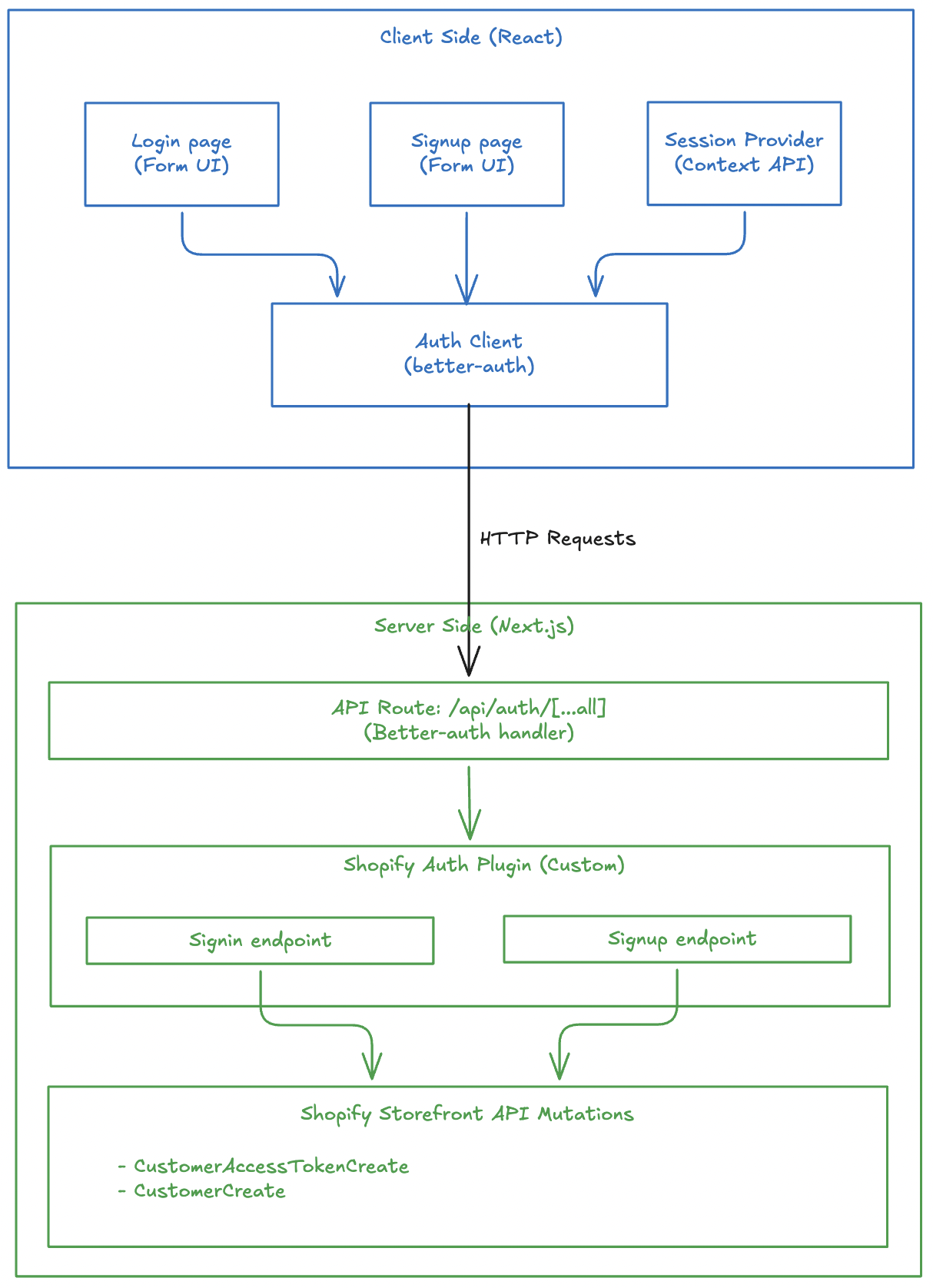
Architecture Overview

Our authentication implementation consists of several key components:

Authentication Architecture

Prerequisites

Before implementing authentication with Better-Auth, ensure you have:

  1. Next.js Setup: A working Next.js application (App Router or Pages Router)
  2. Shopify Integration: Logic to execute Shopify customer mutations (customerAccessTokenCreate, customerCreate, etc.) via Shopify's Storefront API

This article focuses specifically on integrating Better-Auth with Shopify and does not cover Next.js setup or Shopify API integration basics.

Step 1: Install Better-Auth

First, install the required dependencies:

pnpm add better-auth
# or
npm install better-auth
# or
yarn add better-auth

Step 2: Configure Environment Variables

Add the required environment variable for Better-Auth:

# .env
BETTER_AUTH_SECRET=your_secret_key_here

Generate a secure secret key using:

openssl rand -base64 32

Your project might have other environment variables like Shopify Graphql endpoint, storefront access token. I am not writing everything here to stick to the auth logic.

Step 3: Create the Shopify Auth Plugin (Server)

The Shopify auth plugin is the heart of our authentication system. It creates custom endpoints that integrate with Shopify's Customer API.

Define Input Types

First, define TypeScript types for sign-in and sign-up inputs:

// src/lib/shopify-auth-plugin.ts
export type ShopifySignInInput = {
email: string;
password: string;
};

export type ShopifySignUpInput = {
email: string;
password: string;
firstName?: string;
lastName?: string;
acceptsMarketing?: boolean;
autoSignIn?: boolean;
};

You might not need this if you are not using TypeScript.

Setup Validation Schemas

Use Zod to validate incoming requests:

import * as z from "zod";

const signInSchema = z.object({
email: z.email().min(1),
password: z.string().min(1),
});

const signUpSchema = z.object({
email: z.email().min(1),
password: z.string().min(1),
firstName: z.string().min(1).optional(),
lastName: z.string().min(1).optional(),
acceptsMarketing: z.boolean().optional(),
autoSignIn: z.boolean().optional(),
});

Zod is optional. You can skip this if you are not concerned about input validation. Not a mandatory thing for better-auth.

Create the Sign-In Endpoint

The sign-in endpoint calls Shopify's customerAccessTokenCreate mutation and stores the token in an HTTP-only cookie:

import { APIError, createAuthEndpoint } from "better-auth/api";

const SHOPIFY_CUSTOMER_TOKEN_COOKIE = "shopifyCustomerAccessToken";

export const shopifyAuthPlugin = () => {
return {
id: "shopify-auth",
endpoints: {
signIn: createAuthEndpoint(
"/shopify-auth/sign-in",
{
method: "POST",
body: signInSchema,
},
async (ctx) => {
const { email, password } = ctx.body;

// Call Shopify's customer access token create mutation
const result = await customerAccessTokenCreate({ email, password });

if (!result) {
throw new APIError("BAD_REQUEST", {
message: "Shopify sign-in failed.",
});
}

// Extract token and errors from response
const payload = result.customerAccessTokenCreate;
const userErrors = payload?.customerUserErrors ?? [];
const token = payload?.customerAccessToken?.accessToken;
const expiresAt = payload?.customerAccessToken?.expiresAt;

if (userErrors.length || !token) {
throw new APIError("UNAUTHORIZED", {
message: userErrors[0]?.message || "Invalid email or password.",
});
}

// Store token in secure HTTP-only cookie
ctx.setCookie(SHOPIFY_CUSTOMER_TOKEN_COOKIE, token, {
httpOnly: true,
secure: process.env.NODE_ENV === "production",
sameSite: "lax",
path: "/",
expires: expiresAt ? new Date(expiresAt) : undefined,
});

return ctx.json({ ok: true });
},
),
// ... signUp endpoint
},
};
};

The sign-in flow:

  1. Validates email and password using Zod
  2. Calls Shopify's customerAccessTokenCreate mutation
  3. Checks for errors in the response
  4. Stores the access token in an HTTP-only cookie
  5. Returns success response

I have not given the details of customerAccessTokenCreate() function to keep this article stick to auth related logic. You can visit the Github repo of headless-shopify to get that function and see how it works.

Create the Sign-Up Endpoint

This section should go inside the endpoints object, just like signIn.

The sign-up endpoint creates a new customer in Shopify and optionally signs them in:

signUp: createAuthEndpoint(
"/shopify-auth/sign-up",
{
method: "POST",
body: signUpSchema,
},
async (ctx) => {
const { email, password, firstName, lastName, acceptsMarketing, autoSignIn } = ctx.body;

// Create customer in Shopify
const result = await customerCreate({
email,
password,
firstName,
lastName,
acceptsMarketing,
});

const payload = result.customerCreate;
const userErrors = payload?.customerUserErrors ?? [];
const customer = payload?.customer;

if (userErrors.length || !customer) {
throw new APIError("BAD_REQUEST", {
message: userErrors[0]?.message || "Unable to create customer.",
});
}

// Optionally sign in the user immediately after signup
if (autoSignIn) {
const signInResult = await customerAccessTokenCreate({ email, password });
const token = signInResult?.customerAccessTokenCreate?.customerAccessToken?.accessToken;

if (token) {
ctx.setCookie(SHOPIFY_CUSTOMER_TOKEN_COOKIE, token, {
httpOnly: true,
secure: process.env.NODE_ENV === "production",
sameSite: "lax",
path: "/",
});
}
}

return ctx.json({ ok: true, customer });
},
),

The sign-up flow:

  1. Validates all input fields using Zod
  2. Calls Shopify's customerCreate mutation
  3. Handles any errors from Shopify
  4. If autoSignIn is true, immediately signs in the user
  5. Returns success with customer data

Step 4: Configure Better-Auth Server

Create the Better-Auth server instance:

// src/lib/auth.ts
import { betterAuth } from "better-auth";
import { nextCookies } from "better-auth/next-js";
import { shopifyAuthPlugin } from "@/lib/shopify-auth-plugin";

export const auth = betterAuth({
plugins: [nextCookies(), shopifyAuthPlugin()],
});

Step 5: Create API Route Handler

Create a catch-all API route for Better-Auth:

// src/app/api/auth/[...all]/route.ts
import { auth } from "@/lib/auth";
import { toNextJsHandler } from "better-auth/next-js";

export const { GET, POST } = toNextJsHandler(auth);

This creates the following endpoints:

  • POST /api/auth/shopify-auth/sign-in - Sign in
  • POST /api/auth/shopify-auth/sign-up - Sign up

Step 6: Create Client-Side Auth Plugin

A better-auth client-side plugin consumes the APIs created by server-side plugin.

Create the client-side plugin:

// src/lib/shopify-auth-client.ts
import type { BetterAuthClientPlugin } from "better-auth/client";
import type { BetterFetchOption } from "@better-fetch/fetch";
import type {
shopifyAuthPlugin,
ShopifySignInInput,
ShopifySignUpInput,
} from "@/lib/shopify-auth-plugin";

export const shopifyAuthClientPlugin = () => {
return {
id: "shopify-auth",
$InferServerPlugin: {} as ReturnType<typeof shopifyAuthPlugin>,
getActions: ($fetch) => {
return {
shopifySignIn: async (
data: ShopifySignInInput,
fetchOptions?: BetterFetchOption,
) => {
return $fetch("/shopify-auth/sign-in", {
method: "POST",
body: data,
...fetchOptions,
});
},
shopifySignUp: async (
data: ShopifySignUpInput,
fetchOptions?: BetterFetchOption,
) => {
return $fetch("/shopify-auth/sign-up", {
method: "POST",
body: data,
...fetchOptions,
});
},
};
},
} satisfies BetterAuthClientPlugin;
};

Step 7: Initialize Auth Client

Create the auth client instance:

// src/lib/auth-client.ts
import { createAuthClient } from "better-auth/react";
import { shopifyAuthClientPlugin } from "@/lib/shopify-auth-client";

export const authClient = createAuthClient({
plugins: [shopifyAuthClientPlugin()],
});

Step 8: Create Login Page

Now let's build the login UI that uses our auth client.

Setup Component State

// src/app/account/login/page.tsx
"use client";

import React, { useState } from "react";
import { authClient } from "@/lib/auth-client";
import { useRouter } from "next/navigation";

export default function LoginPage() {
const [loading, setLoading] = useState(false);
const [error, setError] = useState<string | null>(null);
const router = useRouter();
// ... form handler
}

Handle Form Submission

The form handler calls the shopifySignIn method from our auth client:

async function onSubmit(e: React.FormEvent<HTMLFormElement>) {
e.preventDefault();
setError(null);
setLoading(true);

const form = e.currentTarget;
const email = (form.elements.namedItem("email") as HTMLInputElement).value;
const password = (form.elements.namedItem("password") as HTMLInputElement)
.value;

try {
const shopifyAuth = await authClient.shopifySignIn({
email,
password,
});

// Check for errors in the response
const shopifyError = (shopifyAuth as { error?: { message?: string } })
?.error?.message;
if (shopifyError) {
setError(shopifyError || "Invalid email or password.");
return;
}

// Verify successful sign-in
const shopifyData = (shopifyAuth as { data?: { ok?: boolean } })?.data;
if (!shopifyData?.ok) {
setError("Invalid email or password.");
return;
}

// Redirect to account page on success
router.push("/account");
} catch (err) {
setError("An error occurred. Please try again.");
} finally {
setLoading(false);
}
}

Render the Form

Create a simple, accessible form:

return (
<div className="max-w-md mx-auto mt-8 p-6">
<h1 className="text-2xl font-bold mb-6">Sign In</h1>

<form onSubmit={onSubmit} className="space-y-4">
<div>
<label htmlFor="email" className="block text-sm font-medium mb-2">
Email
</label>
<input
id="email"
name="email"
type="email"
required
className="w-full px-3 py-2 border rounded-md"
/>
</div>

<div>
<label htmlFor="password" className="block text-sm font-medium mb-2">
Password
</label>
<input
id="password"
name="password"
type="password"
required
className="w-full px-3 py-2 border rounded-md"
/>
</div>

{error && <div className="text-red-600 text-sm">{error}</div>}

<button
type="submit"
disabled={loading}
className="w-full bg-blue-600 text-white py-2 rounded-md"
>
{loading ? "Signing in..." : "Sign In"}
</button>
</form>
</div>
);

Step 8b: Create Signup Page

Similarly, let's create the signup page that allows new users to create accounts.

Setup Component State

// src/app/account/register/page.tsx
"use client";

import React, { useState } from "react";
import { authClient } from "@/lib/auth-client";

export default function RegisterPage() {
const [loading, setLoading] = useState(false);
const [error, setError] = useState<string | null>(null);
// ... form handler
}

Handle Form Submission

The form handler calls shopifySignUp with the new customer information:

async function onSubmit(e: React.FormEvent<HTMLFormElement>) {
e.preventDefault();
setError(null);
setLoading(true);

const form = e.currentTarget;
const firstName = (form.elements.namedItem("firstName") as HTMLInputElement)
.value;
const lastName = (form.elements.namedItem("lastName") as HTMLInputElement)
.value;
const email = (form.elements.namedItem("email") as HTMLInputElement).value;
const password = (form.elements.namedItem("password") as HTMLInputElement)
.value;

try {
const shopifyAuth = await authClient.shopifySignUp({
email,
password,
firstName,
lastName,
acceptsMarketing: false,
autoSignIn: true, // Automatically sign in after signup
});

// Check for errors
const shopifyError = (shopifyAuth as { error?: { message?: string } })
?.error?.message;
if (shopifyError) {
setError(shopifyError || "Unable to create account.");
return;
}

// Verify success
const shopifyData = (shopifyAuth as { data?: { ok?: boolean } })?.data;
if (!shopifyData?.ok) {
setError("Unable to create account.");
return;
}

// Redirect to home page on success
window.location.href = "/";
} catch {
setError("Unable to create account. Please try again.");
} finally {
setLoading(false);
}
}

Note the autoSignIn: true option - this automatically signs in the user after successful registration, providing a seamless onboarding experience.

Render the Form

Create a registration form with fields for first name, last name, email, and password:

return (
<div className="max-w-md mx-auto mt-8 p-6">
<h1 className="text-2xl font-bold mb-6">Create Account</h1>

<form onSubmit={onSubmit} className="space-y-4">
<div>
<label htmlFor="firstName" className="block text-sm font-medium mb-2">
First Name
</label>
<input
id="firstName"
name="firstName"
type="text"
required
className="w-full px-3 py-2 border rounded-md"
/>
</div>

<div>
<label htmlFor="lastName" className="block text-sm font-medium mb-2">
Last Name
</label>
<input
id="lastName"
name="lastName"
type="text"
required
className="w-full px-3 py-2 border rounded-md"
/>
</div>

<div>
<label htmlFor="email" className="block text-sm font-medium mb-2">
Email
</label>
<input
id="email"
name="email"
type="email"
required
className="w-full px-3 py-2 border rounded-md"
/>
</div>

<div>
<label htmlFor="password" className="block text-sm font-medium mb-2">
Password
</label>
<input
id="password"
name="password"
type="password"
required
className="w-full px-3 py-2 border rounded-md"
/>
</div>

{error && <div className="text-red-600 text-sm">{error}</div>}

<button
type="submit"
disabled={loading}
className="w-full bg-blue-600 text-white py-2 rounded-md"
>
{loading ? "Creating Account..." : "Create Account"}
</button>
</form>
</div>
);

Step 9: Create Session Provider

A session provider manages user authentication state across your application using React Context.

Define Context Types

// src/providers/session-provider.tsx
"use client";

import {
createContext,
useCallback,
useContext,
useEffect,
useState,
} from "react";
import { getCurrentUser } from "@/lib/shopify/queries/customers/getCurrentUser";

type SessionUser = Awaited<ReturnType<typeof getCurrentUser>>;

type SessionContextValue = {
user: SessionUser;
loading: boolean;
error: string | null;
refresh: () => Promise<void>;
};

Create the Provider Component

const SessionContext = createContext<SessionContextValue | undefined>(
undefined,
);

export function SessionProvider({ children }: { children: React.ReactNode }) {
const [user, setUser] = useState<SessionUser>(null);
const [loading, setLoading] = useState(true);
const [error, setError] = useState<string | null>(null);

const refresh = useCallback(async () => {
try {
setLoading(true);
setError(null);
const currentUser = await getCurrentUser();
setUser(currentUser);
} catch (err) {
setError(err instanceof Error ? err.message : "Failed to load user");
setUser(null);
} finally {
setLoading(false);
}
}, []);

useEffect(() => {
refresh();
}, [refresh]);

return (
<SessionContext.Provider value={{ user, loading, error, refresh }}>
{children}
</SessionContext.Provider>
);
}

The provider automatically fetches the current user on mount and provides a refresh method to reload user data.

Create a Custom Hook

useSession() provides access to session-related data and functionality throughout your application.

export function useSession() {
const context = useContext(SessionContext);
if (context === undefined) {
throw new Error("useSession must be used within a SessionProvider");
}
return context;
}

Step 10: Use Session in Your App

Wrap Your App

Add the SessionProvider to your root layout:

// src/app/layout.tsx
import { SessionProvider } from "@/providers/session-provider";

export default function RootLayout({
children,
}: {
children: React.ReactNode;
}) {
return (
<html lang="en">
<body>
<SessionProvider>{children}</SessionProvider>
</body>
</html>
);
}

Access User Data

Use the useSession hook in any component to access authentication state:

"use client";

import { useSession } from "@/providers/session-provider";

export function UserProfile() {
const { user, loading, error } = useSession();

if (loading) return <div>Loading...</div>;
if (error) return <div>Error: {error}</div>;
if (!user) return <div>Not logged in</div>;

return (
<div>
<h2>Welcome, {user.firstName}!</h2>
<p>Email: {user.email}</p>
</div>
);
}

The session hook provides:

  • user - Current user data or null
  • loading - Boolean indicating if user data is being fetched
  • error - Error message if fetching failed
  • refresh() - Function to manually reload user data

Key Security Features

1. HTTP-Only Cookies

The access token is stored in an HTTP-only cookie, making it inaccessible to JavaScript:

ctx.setCookie(SHOPIFY_CUSTOMER_TOKEN_COOKIE, token, {
httpOnly: true, // Prevents XSS attacks
secure: process.env.NODE_ENV === "production", // HTTPS only in production
sameSite: "lax", // CSRF protection
path: "/",
expires: expiresAt ? new Date(expiresAt) : undefined,
});

2. Input Validation

All inputs are validated using Zod schemas before processing:

const signInSchema = z.object({
email: z.email().min(1),
password: z.string().min(1),
});

3. Error Handling

Proper error handling prevents information leakage:

if (userErrors.length || !token) {
throw new APIError("UNAUTHORIZED", {
message: userErrors[0]?.message || "Invalid email or password.",
});
}

Benefits of This Approach

  1. Type Safety: Full TypeScript support throughout the authentication flow
  2. Security: HTTP-only cookies and secure token management
  3. Extensibility: Plugin-based architecture makes it easy to add features
  4. Developer Experience: Clean API with minimal boilerplate
  5. Integration: Seamless integration with Shopify's Customer API
  6. Session Management: Built-in session handling with React Context

Conclusion

Implementing authentication in a headless Shopify storefront using Better-Auth provides a secure, type-safe, and developer-friendly solution. The plugin-based architecture allows you to create custom authentication flows that integrate perfectly with Shopify's Customer API while maintaining security best practices.

The complete implementation includes:

  • ✅ Custom Better-Auth plugin for Shopify
  • ✅ Secure cookie-based session management
  • ✅ Sign-in and sign-up functionality
  • ✅ Client-side session provider
  • ✅ Type-safe authentication flows
  • ✅ Error handling and validation

You can find the complete implementation in the Headless Shopify repository.

Resources

How To Write a File to AWS S3 Using Pure Node.js

· 4 min read

If we are using Node.js, there is already an AWS SDK that can write a file to S3.

This article explains how to do it without the SDK. The generic steps to be followed are given in this AWS documentation.

For me it took a while and help from various other articles to finally implement the same using Node.js. Main challenge was in finding the right encryption methods.

Packages

We need crypto package to make use of different hashing algorithms. We need axios to make API requests.

const crypto = require("crypto");
import axios from "axios";

Function to Caculate HMAC SHA256

This function comes handy to do the hmac encryption with a key.

async function sign(key, msg) {
// Convert the key and data to ArrayBuffer
let keyBuffer = key;
if (typeof key === "string") {
keyBuffer = new TextEncoder().encode(key);
}
const dataBuffer = new TextEncoder().encode(msg);

// Import the key
const importedKey = await crypto.subtle.importKey(
"raw",
keyBuffer,
{ name: "HMAC", hash: { name: "SHA-256" } },
false,
["sign"],
);

// Sign the data
const signature = await crypto.subtle.sign(
{ name: "HMAC", hash: "SHA-256" },
importedKey,
dataBuffer,
);

return Buffer.from(signature);
//console.log(crypto.createHmac('sha256', key).update(msg, 'utf8').digest())
}

Function to Caculate SHA256

async function contentHash(content) {
const msgUint8 = new TextEncoder().encode(content);
const hashBuffer = await crypto.subtle.digest("SHA-256", msgUint8);
const hashArray = Array.from(new Uint8Array(hashBuffer)); // convert buffer to byte array
const hashHex = hashArray
.map((b) => b.toString(16).padStart(2, "0"))
.join("");
//const hash = crypto.createHash('sha256').update(content).digest('hex')
return hashHex;
}

Function to Get Signature Key

async function getSignatureKey(key, dateStamp, regionName, serviceName) {
const kDate = await sign(`AWS4${key}`, dateStamp);
const kRegion = await sign(kDate, regionName);
const kService = await sign(kRegion, serviceName);
const kSigning = await sign(kService, "aws4_request");
return kSigning;
}

Function to Create the String to Sign

function createStringToSign(datetime, region, service, requestHash) {
const algorithm = "AWS4-HMAC-SHA256";
const credentialScope = `${datetime.substring(
0,
8,
)}/${region}/${service}/aws4_request`;
const stringToSign = `${algorithm}\n${datetime}\n${credentialScope}\n${requestHash}`;
return stringToSign;
}

Function to Get UTC date

// Function to get the current date in the required format
function getFormattedDate() {
const now = new Date();
const year = now.getUTCFullYear();
const month = ("0" + (now.getUTCMonth() + 1)).slice(-2);
const day = ("0" + now.getUTCDate()).slice(-2);
const hour = ("0" + now.getUTCHours()).slice(-2);
const minute = ("0" + now.getUTCMinutes()).slice(-2);
const second = ("0" + now.getUTCSeconds()).slice(-2);
return {
date: `${year}${month}${day}`,
dateTime: `${year}${month}${day}T${hour}${minute}${second}Z`,
utcString: `${now.toUTCString()}`,
};
}

Init Function

This function sets the values like bucket name, accessKey, secret etc and starts the call stack.

async function init(contentArg, fileNameArg) {
console.log({ contentArg, fileNameArg });
const dateObj = getFormattedDate();
console.log(dateObj);

// Example usage
const accessKey = "AKIA5Q3DN3MWQRKB7865";
const secretKey = "uvzQGk14YWY0LX8RPwm9JZu2example/4qCFBL";
const dateStamp = dateObj.date; // Replace with the current date in YYYYMMDD format
const regionName = "us-east-1"; // Replace with your AWS region
const serviceName = "s3"; // Replace with the AWS service you are using
const datetime = dateObj.dateTime; // Replace with the timestamp of the request
const bucketname = "your-bucket-name";
const fileName = fileNameArg;
const content = contentArg;
const hashedContent = await contentHash(content);

// Example Canonical Request (replace with your actual canonical request)
const canonicalRequest = `PUT
/${fileName}

date:${dateObj.utcString}
host:${bucketname}.s3.amazonaws.com
x-amz-content-sha256:${hashedContent}
x-amz-date:${dateObj.dateTime}

date;host;x-amz-content-sha256;x-amz-date
${hashedContent}`;

// Step 1: Calculate the Signature Key
const signingKey = await getSignatureKey(
secretKey,
dateStamp,
regionName,
serviceName,
);

// Step 2: Create the String to Sign
const requestHash = crypto
.createHash("sha256")
.update(canonicalRequest)
.digest("hex");
const stringToSign = createStringToSign(
datetime,
regionName,
serviceName,
requestHash,
);

// Step 3: Calculate the Signature
const signature = (await sign(signingKey, stringToSign)).toString("hex");

console.log(signature);

const authHeader = `AWS4-HMAC-SHA256 Credential=${accessKey}/${dateObj.date}/us-east-1/s3/aws4_request,SignedHeaders=date;host;x-amz-content-sha256;x-amz-date,Signature=${signature}`;

console.log(authHeader);

const url = "https://your-bucket-name.s3.amazonaws.com/" + fileName;
const authorizationHeader = authHeader;
const contentSha256Header = hashedContent;
const amzDateHeader = dateObj.dateTime;
const dateHeader = dateObj.utcString;
const data = content;

const response = await axios.put(url, data, {
headers: {
Authorization: authorizationHeader,
"x-amz-content-sha256": contentSha256Header,
"x-amz-date": amzDateHeader,
date: dateHeader,
},
});

console.log(response.status);
console.log(response.data);
}

init("hello world content", "filename.txt");

How To Trigger Gitlab Pipeline Using API

· 2 min read

Even though I am using Gitlab on a daily basis, I am new to its API. As part of learning it, I have create a new repo in Gitlab.

Then placed a .gitlab-ci.yml file with below content:

child-job:
script:
- echo "Hello, Child!"

This code just triggers pipeline if we push to any branch in the repo. It will log Hello, Child! in the job console.

Here is the API documentation link that creates a new pipeline.

API Endpoint

Here is the API endpoint to create a new pipeline.

https://gitlab.example.com/api/v4/projects/<project id here>/pipeline?ref=<branch name here>

Project id will be a number that looks like 78547896. Branch name is the branch for which you want the pipeline to run.

Access Token

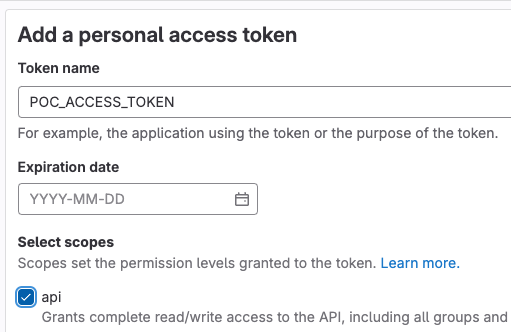
To run the project you need an access token. Visit the access token page to create a new token. The scope can be set as api. You can also set how long the token needs to active.

Create Access token

API Execution

Once we call the API endpoint as a POST request and pass the PRIVATE-TOKEN header, a new pipeline will be created. We can also verify in the project page. There we can see a new pipeline started.

SOLVED: Gitlab Downstream Project Could Not be Found

· 2 min read

In my current e-commerce project, each main pages like home, plp, pdp etc are a separate project in itself. Each project has got a separate repo in Gitlab.

I was trying to have a core central Git repo, that controls of deployment of other repos. This helps in managing deployment from one location.

To implement the same, I tried Multi-project pipelines in Gitlab.

Linking Projects

In the parent / main repo, I have a .gitlab-ci.yml that has below contents:

stages:
- deploy

Deploy to Dev:
stage: deploy
rules:
- if: $CI_COMMIT_REF_NAME =~ /^release\//
trigger:
project: company/group/home-page
branch: dev

Deploy to QA:
stage: deploy
rules:
- if: $CI_COMMIT_REF_NAME =~ /^release\//
trigger:
project: company/group/home-page
branch: qa

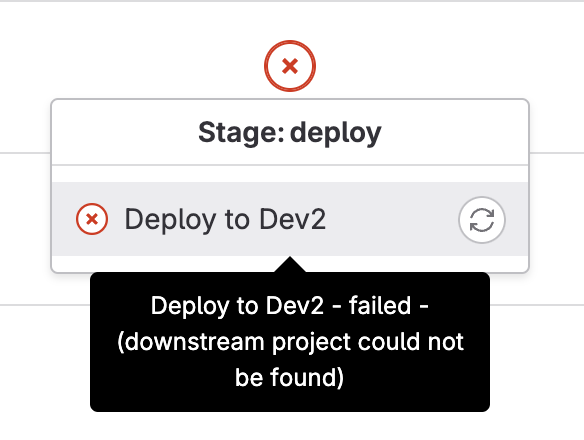
Above code is the final working yml file. When I started after reading the Gitlab documentation, I was giving only group/home-page as the project value. That resulted in error saying "failed-downstream project could not be found".

Downstream error

In my case, what I had to do was to give workspace name also. So when I gave the complete project path that comes after gitlab.com in the url, things started working.

So if your child Gitlab project repo url is https://gitlab.com/apple/iphone/operating-system, the value of project should be apple/iphone/operating-system.

There might be other reasons behind the error. But this is the solution that worked for me.

SOLVED: 431 Status Code With Request Header Fields Too Large

· 2 min read

In my current project, when we moved a page to different architecture, we were seeing status code 431 sometimes from Cloudflare.

What was be the cause?

From a quick analysis, it looks like this was happening as the cookie size is increasing over time. Cookies are part of request header. So, more cookies and bigger cookie values result in bigger request header.

Somebody did not like a big request header.

In my case, we were using Cloudflare for a long time. So Cloudflare is not the problem. But as part of the new architecture, the new entry was AWS API gateway. And he is the villain.

More on AWS API Gateway

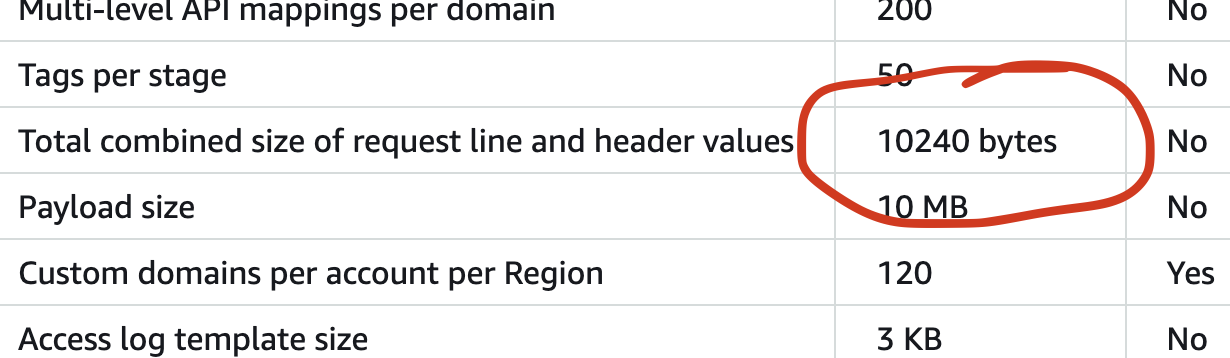
An AWS API gateway has a hard limit for request header size of 10kb. You can read more here.

API Gateway limit

How to fix it

One option is to filter the cookies sent to API Gateway. In my case, I could use this solution because customers are first hitting Cloudflare. Cloudflare is then making call to the API gateway.

So using Cloudflare worker, I could filter the unncessary cookies before sending to the API gateway origin.

Second option is to use AWS cloudfront. The cloudfront url has much greater request header limit. But that comes with a cost. In my case, since we are using Cloudflare as our CDN, we did not go with second route.

Styled Components Resolution in Package.json File

· One min read

We are trying to find out why we add resolutions property in package.json file for Styled Components.

You might have seen below code in package.json file:

"resolutions": {
"styled-components": "^5"
}

In this specific case, the "resolutions" key is used to specify a particular version of the "styled-components" dependency that the project requires. The "^5" symbol in this example is a version range specifier called a caret range, which means that the project will accept any version of styled-components that is compatible with version 5.0.0 or higher, but less than version 6.0.0.

By including this "resolutions" key with a specific version range, the project is telling the package manager to prioritize using the specified version of styled-components, even if other dependencies require a different version. This can help prevent version conflicts and ensure that the project is using the correct version of the dependency it needs.

Take Different Builds For Dev And Production Environment Using Webpack

· 3 min read

To take different builds in development and production environments using webpack, you can use webpack's configuration options to define environment-specific settings. Here are the steps to achieve this:

Define two separate configuration files for development and production environments. You can name them as webpack.config.dev.js and webpack.config.prod.js, respectively.

In the development configuration file, set the mode to development, and in the production configuration file, set it to production. This will enable certain optimizations in production mode, such as minification and code splitting.

Define environment-specific settings in each configuration file. For example, you may want to enable source maps in development mode but disable them in production mode. Similarly, you may want to set different values for output paths or public paths.

Use webpack-merge to merge the common parts of the configurations. This will allow you to avoid duplicating code between the two files.

Use webpack's --config flag to specify which configuration file to use when running webpack. For example, to use the development configuration, you can run webpack --config webpack.config.dev.js.

Here is an example configuration file for development environment:

// webpack.config.dev.js
const { merge } = require("webpack-merge");
const common = require("./webpack.common.js");

module.exports = merge(common, {
mode: "development",
devtool: "inline-source-map",
devServer: {
contentBase: "./dist",
},
});

And here is an example configuration file for production environment:

// webpack.config.prod.js
const { merge } = require("webpack-merge");
const common = require("./webpack.common.js");

module.exports = merge(common, {
mode: "production",
devtool: "source-map",
output: {
filename: "[name].[contenthash].js",
},
});

In this example, the webpack.common.js file contains the common configuration settings that are shared between the two configuration files. You can use the entry, output, and module options to define your build process.

How webpack picks the right config file?

Webpack picks the right configuration file based on the --config option passed to it. The --config option specifies the path to the configuration file that should be used for the build process.

For example, to use the webpack.config.prod.js configuration file for the build process, you would run the following command:

webpack --config webpack.config.prod.js

If you do not pass the --config option, webpack will look for a configuration file named webpack.config.js in the root directory of your project.

Alternatively, you can also use a package.json script to specify the configuration file. For example, in your package.json file, you can add the following scripts:

"scripts": {
"dev": "webpack --config webpack.config.dev.js",
"build": "webpack --config webpack.config.prod.js"
}

In this example, running npm run dev would use the webpack.config.dev.js configuration file, and running npm run build would use the webpack.config.prod.js configuration file.

[SOLVED] Can Terraform Copy Files from One Folder to Another?

· 2 min read

No, Terraform is not designed to copy files from one folder to another directly. Terraform is an infrastructure as code tool that allows you to declare and manage cloud resources such as virtual machines, load balancers, databases, etc.

However, if you need to copy files between folders as part of your infrastructure setup, you can use a provisioner in Terraform to execute a script or command that performs the file copy. A provisioner is a way to execute scripts or commands on the instances or resources you create with Terraform.

For example, you can use a provisioner like "remote-exec" to execute a command on a virtual machine to copy files between folders. The command might look something like this:

provisioner "remote-exec" {
inline = [
"cp /path/to/source/folder/* /path/to/destination/folder/"
]
}

This command would copy all the files in the source folder to the destination folder. Note that this example assumes you have SSH access to the virtual machine and that the required command-line tools are installed on the instance.

Keep in mind that while Terraform can manage the infrastructure for you, it's not the best tool for file management or general-purpose scripting. For more complex scenarios, you might want to consider using a dedicated configuration management tool like Ansible or Chef.

utils.isArchivePath() From @serverless/core Framework

· One min read

utils.isArchivePath() is a method provided by the @serverless/core library, which is a popular Node.js-based framework for building serverless applications.

This method is used to determine whether a given file path represents a compressed archive file, such as a ZIP or TAR file. It takes a file path as input and returns a boolean value indicating whether the file is a valid archive file.

Here's an example of how to use utils.isArchivePath():

const { utils } = require("@serverless/core");

const filePath = "/path/to/archive.zip";
const isArchive = utils.isArchivePath(filePath);

if (isArchive) {
// Do something with the archive file
} else {
// Handle the case where the file is not an archive
}

Note that utils.isArchivePath() is specific to the @serverless/core library and is not a built-in method in Node.js or any other programming language or framework. It is designed to be used in conjunction with the @serverless/core framework to help build serverless applications.

Setting Type for Props Passed to React Component in TypeScript

· One min read

We can create a simple React component as shown below:

const TodoList: React.FC = ({ todos }) => {
return (
<ul>
{todos.map((todo) => (
<li key={todo.id}>{todo.text}</li>
))}
</ul>
);
};

Above code complains that todos is not a valid props type. We can solve it by passing a generic type to React.FC explaining the props structure.

First create an interface defining the props structure:

interface TodoListProps {
items: {
id: string;
text: string;
}[];
}

Pass the interface as Generic type to component.

const TodoList: React.FC<TodoListProps> = ({ todos }) => {
return (
<ul>
{todos.map((todo) => (
<li key={todo.id}>{todo.text}</li>
))}
</ul>
);
};

This will fix the issue.

What is Terraform and How to Start With it?

· 3 min read

Terraform is an open-source infrastructure as code (IaC) tool created by HashiCorp that enables users to define and manage their infrastructure in a declarative manner. It allows you to write code in a high-level language, called HashiCorp Configuration Language (HCL), to describe and provision infrastructure resources such as virtual machines, networks, load balancers, databases, and more. Terraform can manage resources across multiple cloud providers, as well as on-premises infrastructure.

Terraform follows a state-based approach to infrastructure management, where the desired state of the infrastructure is defined in code, and Terraform is responsible for bringing the actual infrastructure state to the desired state. It can automatically manage resource dependencies and ensure that resources are created, updated, or deleted in the correct order. Terraform also allows you to version control your infrastructure code, providing a complete audit trail of changes made to your infrastructure.

Terraform has become a popular tool for automating infrastructure management and is widely used by DevOps teams and system administrators.

How can I start with Terraform?

To get started with Terraform, you can follow these steps:

  1. Install Terraform: You can download and install Terraform from the official website or use a package manager such as Homebrew (for macOS) or Chocolatey (for Windows).
  2. Choose a cloud provider: Terraform supports multiple cloud providers such as AWS, Google Cloud, Microsoft Azure, and more. Choose a provider you want to work with and create an account if you don't have one.
  3. Write your first Terraform configuration file: You will need to write a Terraform configuration file in HCL that describes the infrastructure you want to create. This file is typically named main.tf.
  4. Initialize the Terraform working directory: Once you have created the Terraform configuration file, navigate to the directory where the file is stored and run the terraform init command. This will initialize the working directory and download any necessary providers or modules.
  5. Plan and apply your infrastructure: After initializing the working directory, run the terraform plan command to see a preview of the changes that Terraform will make to your infrastructure. Once you're satisfied with the plan, run the terraform apply command to create the infrastructure.
  6. Review and manage your infrastructure: After applying the changes, you can use the terraform show command to view the current state of your infrastructure. You can also use the terraform destroy command to delete the infrastructure.

Terraform has extensive documentation and guides on their website that can help you get started. Additionally, there are many tutorials and resources available online to help you learn Terraform.

How to View CSP Violations in CloudFlare

· One min read

When Page Shield is enabled in Cloudflare, CloudFlare automatically adds Content-Security-Policy-Report-Only header to all the pages.

content-security-policy-report-only: script-src 'none'; report-uri https://csp-reporting.cloudflare.com/cdn-cgi/...

CSP Report Violation Error in BlueTriangle

· One min read

CSP stands for Content Security Policy. It is an added layer of security in browsers. Bluetriangle can detect and report those errors.

CSP helps to detect and avoid certain types of attacks like Cross-Site Scripting and data injection attacks. These types of attacks are used for data thefts, site defacement and malware distribution.

Publishing Google Chrome Extension to Web Store

· 4 min read

Google web store is the marketplace for Chrome extensions. We can search for extensions in the web store. We can also install extensions in our Chrome browser directly from the store. This article explains how to publish our own extension to Google web store.

We are going to publish the Chrome extension we created as part of Introduction to Google Chrome Extension Development. You can also download the extension code from Github.

Introduction to Google Chrome Extension Development

· 9 min read

Google Chrome extension is a piece of code that adds the capabilities of Google Chrome browser. Some of the popular examples of Google Chrome extensions are:

  • Wappalyzer: Finds out the libraries and frameworks used in a website
  • Awesome Screenshot: Take and share webpage screenshots
  • WhatFont: Easily identify the fonts used in a website
  • Cookie Editor: Edit web page cookies easily, especially for testing purpose
  • JSONVue: Automatically formats JSON response

What is the Expiry Date of Session Cookie

· One min read

A session cookie is a browser cookie that has validity only for that session. For example, when the user logs in, we might store the access token in a session cookie.

Here is how we can see a session cookie in browser console:

Session cookie

Performance Improvement Using Named Imports

· One min read

In a JavaScript or Node.js project, we can import modules using different ways. Here are two examples which we discuss today.

// Default import
import Lodash from "lodash";
Lodash.capitalize("hello");

// Named import
import { capitalize } from "lodash";
capitalize("hello");

Solved: error:0909006C:PEM routines:get_name:no start line

· One min read

I was working on a code deployed in AWS Lambda. The code is written in Node.js. Using axios package, we are making a request to a new HTTPS API endpoint. We already had a mail containing different formats of SSL certificates used by the API server.

We took the first certificate format and attached it to our axios request as an http agent object. The request failed and the error we saw is this:

error:0909006C:PEM routines:get_name:no start line

The issue was that, we took the incorrect PEM file from the mail. It did not contain proper header and footer.

In ideal case, the certificate when opened should contain the proper header and footer. If we open the certificate file using a text editor, we should see a proper header and footer like below:

-----BEGIN CERTIFICATE-----
MIIG9jCCBd6gAwIBAgIQEQOjsh7xKPOteKIB7X4PNTANBgkqhkiG9w0BAQsFADCB
lTELMAkGA1UEBhMCR0IxGzAZBgNVBAgTEkdyZWF0ZXIgTWFuY2hlc3RlcjEQMA4G
A1UEBxMHU2FsZm9yZDEYMBYGA1UEChMPU2VjdGlnbyBMaW1pdGVkMT0wOwYDVQQD
EzRTZWN0aWdvIFJTQSBPcmdhbml6YXRpb24gVmFsaWRhdGlvbiBTZWN1cmUgU2Vy
dmVyIENBMB4XDTIyMDYyNzAwMDAwMFoXDTIzMDYyNzIzNTk1OVowajELMAkGA1UE
BhMCVVMxEzARBgNVBAgTCkNhbGlmb3JuaWExKzApBgNVBAoTIlBldGNvIEFuaW1h
bCBTdXBwbGllcyBTdG9yZXMsIEluYy4xGTAXBgNVBAMTEGFlbXBlcmYucGV0Yy5j
b20wggEiMA0GCSqGSIb3DQEBAQUAA4IBDwAwggEKAoIBAQDBCmtN4OtJKsz6oDkP
leXyg3xvS670HV223BBcwoRXiVnhEimolPRPuR+8V5PzjXGhVh2UXvg0/WQvZe3+
bcb4pyNYC84jspwdaiL62PNAAQPhIZnQytxgJMzd7gD3OpFYapbTVCHqV9/fdGsZ
-----END CERTIFICATE-----

In my case, the proper header(-----BEGIN CERTIFICATE-----) and footer(-----END CERTIFICATE-----) were missing. When I used the file with correct header and footer, the axios request worked.

SOLVED: error:09091064:PEM routines:PEM_read_bio_ex: bad base64 decode

· One min read

In my project, I am using axios to make request to a HTTPS API endpoint. I had to pass the PEM certificate also to make the request work. When making the request, I was thrown with below error:

error:09091064:PEM routines:PEM_read_bio_ex:bad base64 decode

The reason for this error message is that, the certificate file got corrupted for some reason.

In my case, I was trying to create the PEM file by copying the content from crt file. During this process, I accidently deleted one line. When pasted with the correct content, issue got resolved.

Solved: Unable to Verify the First Certificate in Axios Request

· 2 min read

When browsers access a HTTPS url, it first establishes a secure channel using a certificate. All the major certificates are recognized by modern browsers. If a browser does not recognize a certificate, it will ask the user "do you trust this certificate?".

Axios is a common library used to make AJAX requests from browser. When done from a browser, browser handles the certificate management for axios. But, when we use axios from server or from tools like AWS Lambda, it cannot fetch the response. It throws an error saying "unable to verify the first certificate".

Quick Fix

First import https from Node.js.

import * as https from "https";

Create an Https agent using https.Agent() method.

const httpsAgent = new https.Agent({
rejectUnauthorized: false,
});

Then make the axios call using the above httpsAgent.

const { data } = await axios.get(url, { httpsAgent });

Here we are saying axios to ignore the certificate part. Just get the data from url. This can work in most of the cases. Always it is good to verify the source using valid certifcate.

Better Approach

If we have the certificates available, we can tell axios to use them to verify the url source.

const httpsAgent = new https.Agent({
rejectUnauthorized: false,
cert: fs.readFileSync(certificatePath),
});

In the above step we pass the path to certificate file as cert attribute. It can be .crt or .pem file.

Set Cool Icons for Files and Folders in Visual Studio Code

· One min read

While watching different tutorial videos, one thing which I always noticed is the cool icons in the instructor's IDE. I am using Visual Studio Code IDE. In VS code, we can bring cool icons with the help of an extension called vscode-icons.

Installation

First open VS code.

Then click on Extensions tab.

Then search for vscode-icons by VSCode Icons Team.

VS Code Icons

Install the extension.

After installation, the icons appear next to each files and folders. The extension itself has more than 11 million downloads so far at the time of writing. Enjoy!.

Emmet Shorcut in Visual Studio Code to Insert HTML5 Boilerplate

· One min read

When starting a HTML5 document, it is quite boring to copy paste or type the basic structure of a HTML5 document. In most of the IDEs there are shortcuts to insert frequently used code snippets. Such shortcuts are called as Emmets.

There is an Emmet for inserting HTML5 document in Visual Studio Code. They are ! and html:5. Here are the steps to use this emmet.

Create or open an empty html document. Then start typing ! or html:5. Visual Studio Code recognizes it as an Emmet.

Here is how we use emmet with !.

Exclamation emmet for html 5

Here is how we use emmet with html:5 short code.

HTML5 emmet

Once we use the emmet by pressing Enter key, this is how the generated HTML code looks like:

Generated HTML5 code using Emmet

Quickly Setup a Development Web Server in Visual Studio Code Using Live Server

· One min read

Live Server is a Visual Studio Extension that saves a lot of time for me. Initial days, when I need to run a website from live server using a url like http://localhost, I depended on apache server. Sometimes I tried Google extension called 200 Ok.

In order to install this extension, we need to open Visual Studio Code. Then take Extensions tab and search for Live Server.

Search for Live Server

Then choose the one shown below and click the Install button. In my case, I have already installed. That is why it is showing Uninstall button in the screenshot.

Live Server Extension

Once the extension is installed, we can easily open a file using Live Server by right clicking the file and open it with Live Server.

Open Live Server

Tambola Game Development - Part 1

· 2 min read

Tambola is a social game. It is also known as Bingo. I am working to develop an online Tambola game to learn different things related to product development. I am trying to share my findings here.

How To Easily Write HTML5 Boilerplate Code In Visual Studio Code

· One min read

Visual Studio Code is a very popular IDE among web developers. If you are a web developer, you need to fill below code every time a new file is created.

<!DOCTYPE html>
<html lang="en">
<head>
<meta charset="UTF-8" />
<meta http-equiv="X-UA-Compatible" content="IE=edge" />
<meta name="viewport" content="width=device-width, initial-scale=1.0" />
<title>Document</title>
</head>
<body></body>
</html>

We do not have to write again and again in Visual Studio Code. There is a shortcut to add above content easily to a HTML file.

HTML5 Shortcut

To try the shortcut, create a new HTML file in Visual Studio Code. Then, start typing html.

HTML5 Shortcut

From the intellisense dropdown, select html:5 and press Enter key. Visual Studio automatically brings the boilerplate HTML5 code to the file.

The shortcuts like html:5 are called Emmet Abbreviation. If you are working with some libraries like React, and you wish to have a shortcut to create a component, you can search for React emmet plugins in VS Code. It is available. ES7+ React/Redux/React-Native snippets is one such extension.