19 posts tagged with "react"

View All Tags

34 React Interview Questions and Answers for 2022

· 22 min read

React is the preferred library in most of the web projects. Most of the projects which I come across follow either React directly or through some other flavors of React like Next.js or Gatsby. Therefore, it is important to know different capabilities of React.

The questions and their solutions provided here are more realistic and practical. It is written from my experience of using React in my daily projects and taking several interviews for my company. I am not a supporter of asking tricky or difficult React questions that do not have much use or impact in actual project. I try to test if the candidate can use a feature in React in the most appropriate way. Sometimes, I twist the question little bit just to know if the candidate has actually good handson understanding or they have only theoritical understanding of the subject.

This article is a work in progress. I am re-organizing the existing article and adding more questions in these days.

Basics

This section covers basics of React. Most of the questions are suitable for a Junior React developer role. In addition to direct project related questions, we discuss about some concepts, mainly to check, how in-depth a candidate has tried to understand React.

Question 1:

What is virtual DOM? How virtual DOM boosts React performance?

Answer:

Like the actual DOM, the virtual DOM is a node tree that lists elements, their attributes and content as objects and properties. render() method in ReactDOM creates a node tree from React components and updates this tree in response to mutations in the data model caused by actions.

Whenever anything is changed, the entire UI is first re-rendered in virtual DOM representation. The difference between earlier virtual DOM representation and current one is calculated. The real DOM is updated with what has actually changed. Updating virtual DOM is very fast compared to real browser re-render. Hence performance is improved.


Question 2:

Is it possible to write a React application without JSX?

Answer:

Yes. It is possible.

In a React application, React components are created using react.js library. It is then rendered in a browser using react-dom.js. We can include both of these files directly from a CDN and use it.

<script
crossorigin
src="https://unpkg.com/react@18/umd/react.development.js"
></script>
<script
crossorigin
src="https://unpkg.com/react-dom@18/umd/react-dom.development.js"
></script>

Here is an example of a React component that is written without JSX.

const MyComponent = React.createElement("h1", null, "Hello World!");
ReactDOM.render(MyComponent, document.getElementById("root"));

ReactDOM is taken from react-dom.js library.


Question 3:

When we setup a React project, always we import two libraries, react and react-dom.

import React from "react";
import ReactDOM from "react-dom";

If those two are used together always, why they are kept as two separate files?

Answer:

React library is used to create components. A component is a building block of an application. React library has classes and methods for this purpose.

On the other hand, React-DOM deals with placing the components on browser. It deals with shadow DOM and other efficient rendering techniques.

Now, if we consider React Native development, we again use React to build the app components. But we use React Native to build and publish the app for mobile devices.

We can see that React, as a component library is reused by several platforms like React Native, React 3D or React Art. That is why it is maintained as a separate project and package.


Question 4:

When I ran my React project, I am seeing this error in the browser console:

Warning: Each child in a list should have a unique "key" prop.

What might have happened?

Answer:

We receive this error when we try to render an array of components without a key. React recommends adding a unique key attribute to all the components that are rendered from an array.

reactComponentsArray.map((Component) => <Component key={uniqueId} />);

React internally keeps track of components and their updates using this key. Without the key, each time, React needs to re-render the entire component list which affects the performance. That is why React alerts the developer during the development. This error message will not be displayed when using production build of React library.


Question 5:

What is JSX? and why do we use it in React project?

Answer:

JSX enables us to write React components using a syntax similar to HTML.

Here is a React component created without JSX:

const Pet = (props) => {
return React.createElement("div", {}, [
React.createElement("h1", {}, props.name),
React.createElement("h2", {}, props.animal),
React.createElement("h2", {}, props.breed),
]);
};

Here is the same component written using JSX:

const Pet = (props) => {
return (
<div>
<h1>{props.name}</h1>
<h2>{props.animal}</h2>
<h2>{props.breed}</h2>
</div>
);
};

JSX adds the readability of the code.


Question 6:

Here is a JSX code snippet:

<div>
<h1>Hello JSX</h1>
<h2 label="screen">Sub heading</h2>
</div>

Can you please write down JavaScript equivalent of this code?

This question is to check if the candidate has heard about React.createElement(). Usually developers jump into a React project and start building components using JSX. Only a curious developer who went to know more about the under the hood details will answer this question. If a candidate answers this question, I will be more interested.

Answer:

JSX is a syntactical sugar for React developers to easily create components. We use transpilers like Babel to convert JSX to JavaScript.

When Babel converts above code to JavaScript, it makes use of React.createElement(). This method accepts 3 parameters.

  1. Name of component
  2. Attributes of the component
  3. Children of the component

Here is how the JavaScript output of above code looks like:

React.createElement("div", {}, [
React.createElement("h1", {}, "Hello JSX"),
React.createElement(
"h2",
{
label: "screen",
},
"Sub heading",
),
]);

Question 7:

We have a functional component here:

function Banner(props) {
return <h1>{props.name}</h1>;
}

Convert above code to a class component.

Answer:

class Banner extends React.Component {
render() {
return <h1>{this.props.name}</h1>;
}
}

In functional components, we can give any name to the props argument. But in class component props are always taken from this.props.


Question 8:

Here is a React component that tries to display a variable:

export default function App() {
const website = "backbencher.dev"; // highlight-line
return (
<div className="App">
<h1>Hello {website.toUpperCase()}</h1> //highlight-line
</div>
);
}

I am trying to print the website name in capital letters directly inside JSX. Will that work?

Answer :

Yes. We can write any valid expression inside the curly bracket. Therefore, in this case the output will be "Hello BACKBENCHER.DEV".


Question 9:

Here we have got a React component. Inside the JSX, we invoke a function.

function capitalize(inputStr) {
return inputStr.toUpperCase();
}

export default function App() {
const website = "backbencher.dev";
return (
<div className="App">
<h1>Hello {capitalize(website)}</h1> // highlight-line
</div>
);
}

What will be the output? Will this code generate any error?

Answer:

This syntax is perfectly fine. Function invocation is a valid expression. The function is therefore invoked and the output printed will be "Hello BACKBENCHER.DEV".


Question 10:

This is a little advanced question. It requires good understanding of JSX.

What will be printed in the header?

export default function App() {
const a = <div id="backbencher" />;

return (
<div className="App">
<h1>{a.props.id}</h1>
</div>
);
}

Answer:

The code displays "backbencher" inside h1.

Every JSX is converted to a JavaScript object during transpiling. For example <div id="backbencher" /> is converted to below object.

{
type: "div",
key: null,
ref: null,
props: {
id: "backbencher"
},
// few more
}

That is why we could read the props property and display the value. Due to the same reason, we can use JSX in conditions, function argument or funtion return value. Basically we can use JSX in any place we can use an object.


Question 11:

I have two components <WildAnimals /> and <DomesticAnimals />. If the value of isWildAnimal is true, I need to render <WildAnimals />. Or else, I need to render <DomesticAnimals />. In what all ways I can implement that in JSX?

**Answer: **

One way is to use if..else. When using if..else, the condition statement should be outside JSX because JSX can contain only expressions, not statements.

let componentToRender = <DomesticAnimals />;
if (isWildAnimal) {
componentToRender = <WildAnimals />;
}

Other technique is to use ternary operator. Since using ternary operator is an expression, we can directly use inside JSX.

<div className="App">
{isWildAnimal ? <WildAnimals /> : <DomesticAnimals />}
</div>

Question 12:

We have a component <WildAnimals />. We need to show it only if isWildAnimal is true. How can we put that condition in JSX?

Answer:

One way is to use if condition. if condition needs to be outside JSX. So the code would look like:

let wildAnimalComponent = null;
if (isWildAnimal) {
wildAnimalComponent = <WildAnimals />;
}
return <div className="App">{wildAnimalComponent}</div>;

Another way is to use ternary operator:

return <div className="App">{isWildAnimal ? <WildAnimals /> : null}</div>;

Last way and the normally used one in this case is to use logical AND operator. In JavaScript, in an AND operation, the operand that decides the result of expression is returned. Using that behaviour, we can write the JSX code as follows:

return <div className="App">{isWildAnimal && <WildAnimals />}</div>;

Question 13:

Here we have a React component:

<Banner>
<img src="hero.png" />
<caption>Good product</caption>
</Banner>

When the above component renders, it should render below HTML:

<div class="banner">
<img src="hero.png" />
<caption>
Good product
</caption>
</div>

Please write down the code for <Banner /> component.

Answer:

Here, we are passing the content for Banner component as children. Any content inside a component is passed to the component as props. We can retrieve the children from props using props.children. Here is the code for Banner component.

function Banner({ children }) {
return <div className="banner">{children}</div>;
}

Hooks

Question 14:

What are hooks in React?

Answer:

Hooks was introduced in React v16.8. It allows to use all React features without writing class components. For example, before version 16.8, we needed a class component to manage state inside a component. Now we can keep state in a functional component using useState() hook.


Question 15:

Will React hooks work inside class components?

Answer:

No. Hooks will work only inside functional components.


Question 16:

Why React hooks was introduced?

Answer:

One reason to introduce hooks was the complexity in dealing with this keyword inside class components. If not handled properly, this will take some other value. That will result in breaking lines like this.setState() and other event handlers. Using hooks, we avoid that complexity when working with functional components.

Class components do not minify very well and also make hot reloading unreliable. That is another inspiration to bring hooks.

Another reason is that, there is no specific way to reuse stateful component logic. Even though HOC and render props patterns address this problem, that asks for modifying the class component code. Hooks allow to share stateful logic without changing the component hierarchy.

Fourth reason is, in a complex class component, related code are scattered in different lifecycle methods. Example, in case of a data fetching, we do that mainly in componentDidMount() and componentDidUpdate(). Another example is, in case of event listeners, we use componentDidMount() to bind an event and componentWillUnmount() to unbind. Hooks instead helps to place related code together.


useState()

Question 17:

How useState hook works? What is/are the arguments accepted by this hook and what is returned by the hook?

Answer:

useState hook is a function which is used to store state value in a functional component. It accepts an argument as the initial value of the state. It returns an array with 2 elements. First element is the current value of state. Second element is a function to update the state.

We import useState first from React by

import React, { useState } from "react";

Later we use useState like:

const [currentStateValue, functionToUpdateState] = useState(initialStateValue);

Question 18:

Here we have a class component with a state value. Each time the button in component is clicked, the count is incremented.

class Counter extends Component {
state = {
count: 0,
};

incrementCount = () => {
this.setState({
count: this.state.count + 1,
});
};

render() {
return (
<div>
<button onClick={this.incrementCount}>Count: {this.state.count}</button>
</div>
);
}
}

Rewrite this component using React hooks.

Answer:

import React, { useState } from "react";

function Counter() {
const [count, setCount] = useState(0);

return (
<div>
<button
onClick={() => {
setCount(count + 1);
}}
>
Count: {count}
</button>
</div>
);
}

Question 19:

Below we have a class component. It contains code to update the state based on previous state value.

class Counter extends Component {
state = {
count: 0,
};

incrementCount = () => {
this.setState((prevState) => {
return {
count: prevState.count + 1,
};
});
};

decrementCount = () => {
this.setState((prevState) => {
return {
count: prevState.count - 1,
};
});
};

render() {
return (
<div>
<strong>Count: {this.state.count}</strong>
<button onClick={this.incrementCount}>Increment</button>
<button onClick={this.decrementCount}>Decrement</button>
</div>
);
}
}

Rewrite the above code using React hooks.

Answer:

One can update the value of a state variable just by passing the new value to update function or by passing a callback function. Second technique which accepts a callback function is safe to use.

import React, { useState } from "react";

function Counter() {
const [count, setCount] = useState(0);

const incrementCount = () => {
setCount((prevCount) => {
return prevCount + 1;
});
};

const decrementCount = () => {
setCount((prevCount) => {
return prevCount - 1;
});
};

return (
<div>
<strong>Count: {count}</strong>
<button onClick={incrementCount}>Increment</button>
<button onClick={decrementCount}>Decrement</button>
</div>
);
}

Question 20:

Here we have class component that updates the state using the input from a form.

export class Profile extends Component {
state = {
name: "Backbencher",
age: 23,
};

onNameChange = (e) => {
this.setState({
name: e.target.value,
});
};

onAgeChange = (e) => {
this.setState({
age: e.target.value,
});
};

render() {
return (
<div>
<form>
<input
type="text"
value={this.state.name}
onChange={this.onNameChange}
/>
<input
type="text"
value={this.state.age}
onChange={this.onAgeChange}
/>
<h2>
Name: {this.state.name}, Age: {this.state.age}
</h2>
</form>
</div>
);
}
}

Rewrite the same component using React hooks.

Answer:

import React, { useState } from "react";

function Profile() {
const [profile, setProfile] = useState({
name: "Backbencher",
age: 24,
});

const onNameChange = (e) => {
setProfile({ ...profile, name: e.target.value });
};

const onAgeChange = (e) => {
setProfile({ ...profile, age: e.target.value });
};

return (
<div>
<form>
<input type="text" value={profile.name} onChange={onNameChange} />
<input type="text" value={profile.age} onChange={onAgeChange} />
<h2>
Name: {profile.name}, Age: {profile.age}
</h2>
</form>
</div>
);
}

The setter function of useState() does not automatically merge if an object is stored in state. But in case of setState() method in class components, auto merging happens.

Here we are merging object properties with the help of JavaScript spread operator.


Question 21:

What are the differences in using hooks and class components with respect to state management?

Answer:

When using setState() in class components, always the state variable is an object. Where as, the state variable in hooks can be of any type like number, string, boolean, object or array.

When state variable is an object, setState() in class components automatically merges the new value to the state object. But in case of setter function in useState(), we need to explicitly merge the updated object property using spread operator.


useEffect()

Question 22:

What is the purpose of useEffect hook?

Answer:

The Effect hook lets us to perform side effects in functional components. It helps us to avoid redundant code in different lifecycle methods of a class component. It helps to group related code.


Question 23:

Here is a class component that prints Boom in console whenever it is mounted or updated.

export class Banner extends Component {
state = {
count: 0,
};

updateState = () => {
this.setState({
count: this.state.count + 1,
});
};

componentDidMount() {
console.log("Boom");
}

componentDidUpdate() {
console.log("Boom");
}

render() {
return (
<div>
<button onClick={this.updateState}>State: {this.state.count}</button>
</div>
);
}
}

Remove the redundant console.log statement using React hooks.

Answer:

componentDidMount() and componentDidUpdate() are lifecycle methods. Such side effects can be done using useEffect hook. useEffect hook is a function which accepts a callback function. That callback function is called every time render happens.

The code can be rewritten as:

import React, { useState, useEffect } from "react";

function Banner() {
const [count, setCount] = useState(0);

useEffect(() => {
console.log("Boom");
});

const updateState = () => {
setCount(count + 1);
};

return (
<div>
<button onClick={updateState}>State: {count}</button>
</div>
);
}

Question 24:

Understand the code below:

function Banner() {
const [count, setCount] = useState(0);
const [name, setName] = useState("");

useEffect(() => {
console.log("Count is updated");
});

return (
<div>
<button onClick={() => setCount(count + 1)}>State: {count}</button>
<input
type="text"
value={name}
onChange={(e) => setName(e.target.value)}
/>
</div>
);
}

It logs "Count is updated" message even when updating the value in textbox. How can we show the log message only when the count state is updated?

Answer:

useEffect function accepts a second parameter which should be an array. Within this array, we need to pass the props or state we need to watch for. Only if those props or state mentioned in the array change, the effect is executed. So in our code, we add the second argument and specify only count value in the array.

Here is the udpated useEffect code:

useEffect(() => {
console.log("Count is updated");
}, [count]);

Question 25:

We have got a class component that updates time every second. It uses componentDidMount() to set the timer.

export class Clock extends Component {
state = {
date: new Date(),
};

componentDidMount() {
setInterval(() => {
this.setState({
date: new Date(),
});
}, 1000);
}

render() {
return <div>{this.state.date.toString()}</div>;
}
}

Convert the above code to React hooks.

Answer:

componentDidMount() is a lifecycle method that executes only once in a component lifecycle. We use useEffect to bring effects of componentDidMount(). But useEffect runs on every props or state updation. To prevent it, we make use of second array argument of useState. We keep that array empty. So for React, there are no props or state to watch for. Therefore useEffect runs only once like componentDidMount().

Here is the code using React hooks.

function Clock() {
const [date, setDate] = useState(new Date());

useEffect(() => {
setInterval(() => {
setDate(new Date());
}, 1000);
}, []);

return <div>{date.toString()}</div>;
}

Question 26:

We have a code snippet from a class component which registers and remove an event listener.

componentDidMount() {
window.addEventListener("mousemove", this.handleMousePosition);
}

componentWillUnmount() {
window.removeEventListener("mousemove", this.handleMousePosition);
}

Convert this code to React hooks format.

Answer:

useEffect(() => {
window.addEventListener("mousemove", handleMousePosition);

return () => {
window.removeEventListener("mousemove", handleMousePosition);
};
}, []);

useContext()

Question 27:

When should we use React Context instead of prop-drilling?

prop-drilling refers to the technique where we pass a value from one component to nested components through props.

Answer:

If we have a value that could be accessed anywhere from the application, we can consider Context. Few examples that fit to this condition is:

  • Dark or light theme for a site
  • Global site level theme settings
  • User authentication status like is guest or is registered.

If the value shared by a component is specific to that component and its children, it is good to use prop-drilling. That improves code readability and the developer can easily identify from where this value is coming.


Question 28:

Here we have a set of 5 React components that is nested one inside other. Component A is passing a value to component E through prop-drilling.

const E = (props) => <h1>{props.fruit}</h1>;
const D = (props) => <E fruit={props.fruit} />;
const C = (props) => <D fruit={props.fruit} />;
const B = (props) => <C fruit={props.fruit} />;
const A = (props) => <B fruit={props.fruit} />;

<A fruit="Apple" />;

How can we rewrite the same code using useContext()?

Answer:

import React, { useContext } from "react";

const FruitContext = React.createContext();

const E = (props) => {
const fruit = useContext(FruitContext);
return <h1>{fruit}</h1>;
};

const D = (props) => <E />;
const C = (props) => <D />;
const B = (props) => <C />;

const A = (props) => (
<FruitContext.Provider value="Apple">
<B />
</FruitContext.Provider>
);

export default A;

useRef()

Question 29:

What is the common application of useRef() hook? Explain the implementation.

Answer:

Normally we use useRef() to hold reference to any DOM element. In order to use it, first we need to import useRef() hook from react package.

import { useRef } from "react";

Next we create a reference object inside the component by invoking useRef() hook.

const divRef = useRef();

Now we can attach the ref variable divRef to any DOM element using the ref attribute. Here is a code snippet that changes the background color of a div element when user clicks on the div block.

import { useRef } from "react";

export default function DOM() {
const divRef = useRef();

const clickHandler = () => {
divRef.current.style.backgroundColor = "red";
};

return (
<div ref={divRef} onClick={clickHandler}>
Try Clicking Me!
</div>
);
}

Question 30:

Other than accessing DOM elements using ref attribute, is there any other use for useRef()?

Answer:

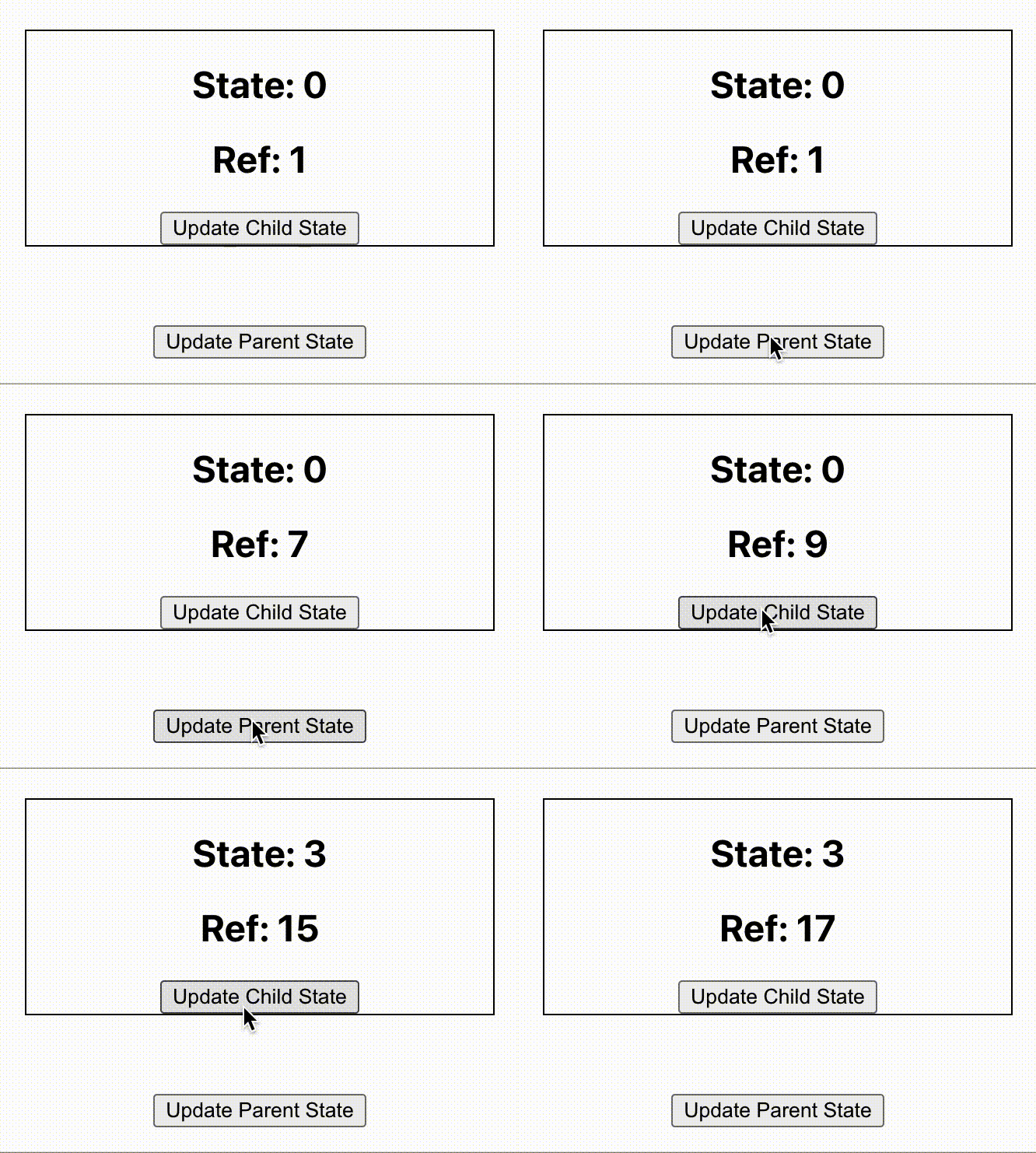
Accessing DOM elements using ref attribute is just one of the use case of useRef(). Basically, useRef() is like a box that can hold a mutable value in its .current property.

Here we have a parent component that can update its state:

export default function Parent() {
const [stars, setStars] = useState("");

const clickHandler = () => {
setStars(stars + "*");
};

return (
<>
<Child />
<button onClick={clickHandler}>Update Parent State</button>
</>
);
}

The Child component contains a ref object which increments its current value on each render.

export default function Child() {
const [count, setCount] = useState(0);

const refCount = useRef(0);
refCount.current++;

const updateCount = () => {
setCount(count + 1);
};

return (
<div
style={{ border: "1px solid #000", width: "300px", margin: "50px auto" }}
>
<h2>State: {count}</h2>
<h2>Ref: {refCount.current}</h2>
<button onClick={updateCount}>Update Child State</button>
</div>
);
}

Each time when the Child component is rendered, we can see the ref count getting incremented without getting resetting to 0. Here is a GIF image that shows the output.
useRef()

The double rendering on each button click is due to React running in development mode.

Performance

Question 31:

How to measure performance of a React application?

Answer:

One way to measure the performance of a React component is by using Profiler.


Tools

Question 32:

For a React project, will you choose Webpack or Parcel?

Answer:

Webpack and Parcel are two tools to bundle files in a React project. We are trying to compare both of them and make better decisions in our React project.

For busy readers, if you are building a big React project or needs to suggest a bundler for an upcoming big project, Webpack is the choice.

Zero Configuration

The main highlight of Parcel bundler is that we can start using Parcel just like that. No configurations are required. But, from Webpack 5 onwards, we can use Webpack also with zero configuration.

Typically there will be a webpack.config.js Webpack config file in a project. In some projects, there will be multiple config files. Then, based on the environment, we take different type of builds.

So regarding configuration, both are good and easy to start. But as more and more customiztion is required in the bundle, we need to go with Webpack.

Code-Splitting

Both performs code splitting. But, Parcel throws out all the output files to a single folder. So sometimes the output folder is a big mess of CSS, JS and html files.

On the other hand, we can tell Webpack to group CSS, JS, Images or HTML to separate folders and keep the project more structured.

Bundling Speed

Parcel is slow for the first build. Then it picks up.

Webpack takes more time based on the configurations we write.

Both tools support live hot reload in their own way.

Community Support

That is everything for a serious project. If something goes wrong, there should be a strong community to support. Webpack is a clear winner there.

If you are looking for a Webpack plugin, 99% it will be there. Sometimes more than one will be available. You just have to pick the one with more stars.

Parcel is a great starter for development, teaching or proof of concepts. In the long run, everyone needs Webpack.


Question 33:

You are going to initialize your React project as a Git repository. What all files or folders you usually add to your .gitignore file?

Answer:

Files or folders added in .gitignore file are avoided by Git while tracking. For a typical React project we add following files or folders in .gitignore.

node_modules

Like any other Node projects, we ignore node_modules/ directory. Including node_modules directory increases the project size to a large extend. Other than the size, it is always good to install the packages from package.json if a new developer is cloning the project.

coverage

When we implement code coverage in our project, all the reports are stored in coverage/ folder. We do not want that to be uploaded to Git server.

DS_Store

Mac OS creates this file in every folder if we open that folder in Finder. DS_Store stands for Desktop Services Store. The file basically stores information about the current folder and other files around it. It does not have any signifance specific to our React project.

Distribution

dist/ is the name of a typical directory used to store distribution files. That is the common naming convention. If your project has another name for output folder, give that name in .gitignore.

IDE Specific

If we are working in Visual Studio Code, it automatically creates a .vscode directory to store the project settings. Other editors like Sublime Text has its own versions of settings file. We can exclude those files or directories from versioning.

Logs

Any logs or directories that contains just log information can be ignored. That folder will keep on getting larger and its totally unnecesary to include it in versioning.

Here is an example .gitignore file.

.idea/
.vscode/
node_modules/
build
.DS_Store
*.tgz
my-app*
template/src/__tests__/__snapshots__/
lerna-debug.log
npm-debug.log*
yarn-debug.log*
yarn-error.log*
/.changelog
.npm/

Other informations we might add to .gitignore are changelogs, snapshots or build zip files.


Question 34:

Which of the following import techniques is better for performance and why?

// Method 1
import Lodash from "lodash";
// Method 2
import { capitalize } from "lodash";

Answer:

In a JavaScript or Node.js project, we can import modules using different ways. Here are two examples which we discuss today.

// Default import
import Lodash from "lodash";
Lodash.capitalize("hello");

// Named import
import { capitalize } from "lodash";
capitalize("hello");

Lodash is just an example used to demonstrate the performance. We all know that lodash contains several utility methods.

Both the types of import works. But the performance of both techniques vary based on the bundler we use. Different bundlers use the different ways for tree shaking.

Tree shaking is the process taken by bundlers to find out what all methods or modules need to be included in the output bundle.

It is always advised to use named imports. It makes sure that only the required modules are loaded to the output bundle.

useContext() React Hook Interview Questions

· 2 min read

Question:

When should we use React Context instead of prop-drilling?

prop-drilling refers to the technique where we pass a value from one component to nested components through props.

Answer:

If we have a value that could be accessed anywhere from the application, we can consider Context. Few examples that fit to this condition is:

  • Dark or light theme for a site
  • Global site level theme settings
  • User authentication status like is guest or is registered.

If the value shared by a component is specific to that component and its children, it is good to use prop-drilling. That improves code readability and the developer can easily identify from where this value is coming.

useContext() Hook in React

· 3 min read

In React, data flows very explicitly from one component to another. If a parent component wants to pass a data to child, it can pass it through props. Another way to pass value to any nested components is by using context.

Converting JSX to JavaScript

· One min read

JSX is a syntactical sugar for React developers to easily create components. We use transpilers like Babel to convert JSX to JavaScript.

Here we have a JSX snippet:

<div>
<h1>Hello JSX</h1>
<h2 label="screen">Sub heading</h2>
</div>

Explanation for Each child in a list should have a unique key prop in React

· 2 min read

You have an array of React components. You are trying to render it using a loop. While running the application, everything looks good. But in the browser console you see this error:

VM9:85 Warning: Each child in a list should have a unique "key" prop.

Check the render method of `App`. See https://reactjs.org/link/warning-keys for more information.

This error message appears only when we use development version of React file. We will not see this error in production.

Why React and React-DOM Libraries are Kept in Two Separate Packages

· 2 min read

In a typical React project we import two packages, react and react-dom.

import React from "react";
import ReactDOM from "react-dom";

If we are using React CDN, again we add reference to two CDN links.

<script
crossorigin
src="https://unpkg.com/react@18/umd/react.development.js"
></script>
<script
crossorigin
src="https://unpkg.com/react-dom@18/umd/react-dom.development.js"
></script>

Being a React developer for some time, a question might come to our mind. Why these two files are not combined and shipped as a single file?

React for Components

React library is used to create components. A component is a building block of an application. React library has classes and methods for this purpose.

On the other hand, React-DOM deals with placing the components on browser. It deals with shadow DOM and other efficient rendering techniques.

Now, if we consider React Native development, we again use React to build the app components. But we use React Native to build and publish the app for mobile devices.

The point I am trying to say is, React, as a component library is reused by several platforms like React Native, React 3D or React Art. That is why it is maintained as a separate project and package.

Click here for all React interview questions

Writing React Application Without JSX or Webpack

· 2 min read

We all might have started to try React either using Create React App or directly jumped into a React project where all the setup is already done. There are JSX, Webpack, Babel and lot of other tools in the project.

If you started web development before 2010 or in that range, you might think about React as little complex in the initial days. That is because there were no build step in frontend years ago. Life was all about including a jQuery script and ta da!

Now the question is, can we create a React component in a simple HTML file? Just like we used jQuery. Yes we can.

CDN

We need to first add React and React-DOM files from CDN, just like we do for other libraries like Bootstrap or jQuery.

<script
crossorigin
src="https://unpkg.com/react@18/umd/react.development.js"
></script>
<script
crossorigin
src="https://unpkg.com/react-dom@18/umd/react-dom.development.js"
></script>

Keep the reference to the bottom of body tag.

HTML markup

Add a div block with any id, say root. This div block is going to be the container of our React component.

<div id="root"></div>

React Component

JSX was introduced to give a better syntax for developers to create React component. Even though it is tough, it is possible to create a component using plain JavaScript.

const MyComponent = React.createElement("h1", null, "Hello World!");
ReactDOM.render(MyComponent, document.getElementById("root"));

In the first line we created a React component. In the second line we placed it inside our div.

You will not do this in any of your projects. But it is still a good thing to know that it is possible.

Click here for all React interview questions

Webpack Or Parcel In React Project

· 2 min read

Webpack and Parcel are two tools to bundle files in a React project. We are trying to compare both of them and make better decisions in our React project.

For busy readers, if you are building a big React project or needs to suggest a bundler for an upcoming big project, Webpack is the choice.

Zero Configuration

The main highlight of Parcel bundler is that we can start using Parcel just like that. No configurations are required. But, from Webpack 5 onwards, we can use Webpack also with zero configuration.

Typically there will be a webpack.config.js Webpack config file in a project. In some projects, there will be multiple config files. Then, based on the environment, we take different type of builds.

So regarding configuration, both are good and easy to start. But as more and more customiztion is required in the bundle, we need to go with Webpack.

Code-Splitting

Both performs code splitting. But, Parcel throws out all the output files to a single folder. So sometimes the output folder is a big mess of CSS, JS and html files.

On the other hand, we can tell Webpack to group CSS, JS, Images or HTML to separate folders and keep the project more structured.

Bundling Speed

Parcel is slow for the first build. Then it picks up.

Webpack takes more time based on the configurations we write.

Both tools support live hot reload in their own way.

Community Support

That is everything for a serious project. If something goes wrong, there should be a strong community to support. Webpack is a clear winner there.

If you are looking for a Webpack plugin, 99% it will be there. Sometimes more than one will be available. You just have to pick the one with more stars.

Parcel is a great starter for development, teaching or proof of concepts. In the long run, everyone needs Webpack.

Click here for all React interview questions

Styled Components in React

· 2 min read

Just like CSS is used to style HTML page, Styled Components is one of the way to style React components. How we use Styled Components differs from normal CSS. Styled Components follow a CSS-in-JS approach.

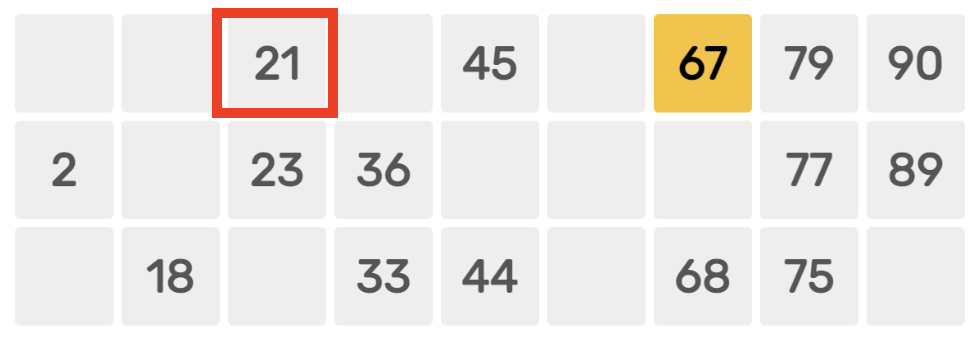
This article is part of setting up a Tambola game. The learnings through the journey is documented in this blog.

Planning React Component

The goal is to create a React component that renders a single cell of a Tambola Card.

Tambola Cell

Here is the TambolaCell component.

const Tambolacell = (props) => {
return (
<Cell numberCalled={props.numberCalled}>
<Helmet>
<link rel="preconnect" href="https://fonts.googleapis.com" />
<link rel="preconnect" href="https://fonts.gstatic.com" crossorigin />
<link
href="https://fonts.googleapis.com/css2?family=Rubik:wght@400;700&display=swap"
rel="stylesheet"
/>
</Helmet>
12
</Cell>
);
};

The Cell component used is a Styled Component which we will see in the next section.

The component uses Rubik Google font. The reference to the font is added in <head> using react-helmet package.

Using Styled Component

We need to install styled-components. Then import it using:

import styled from "styled-components";

We can then create a React component with style like this:

export const Cell = styled.div`
background: ${(props) => (props.numberCalled ? "#ffbf00" : "#eee")};
color: #333;
font-size: 18px;
font-family: "Rubik", sans-serif;

display: flex;
width: 38px;
height: 38px;
justify-content: center;
align-items: center;

border-radius: 3px;
`;

This is how the Cell component in previous section was created. The props we pass to Cell component can be read inside the component like:

background: ${(props) => (props.numberCalled ? "#ffbf00" : "#eee")};

Output

Here we use the component with and without props.

<TambolaCell />
<br />
<TambolaCell numberCalled />

And here is the output:

Output

useReducer() React Hook

· 3 min read

useReducer() is also used to maintain state in a component just like useState(). But, it differs in how it is used. If we are planning to store an object in state, useReducer() will be a better choice in most of the cases.

Without useReducer()

We are going to store an object in state using useState(). You can see the working demo and code in CodeSandbox. Here is the initial object value that stores RGB color information.

{
red: 0,
green: 0,
blue: 0,
};

The state is set using useState() syntax:

const [rgb, setRGB] = useState({
red: 0,
green: 0,
blue: 0,
});

We have 3 textboxes to update the value of red, green and blue color.

<input
type="text"
placeholder="Red"
onChange={(e) => {
updateColor("red", e.target.value);
}}
value={rgb.red}
/>
<br />
<input
type="text"
placeholder="Green"
onChange={(e) => {
updateColor("green", e.target.value);
}}
value={rgb.green}
/>
<br />
<input
type="text"
placeholder="Blue"
onChange={(e) => {
updateColor("blue", e.target.value);
}}
value={rgb.blue}
/>

All input fields calls the same function, updateColor().

const updateColor = (color, value = 0) => {
const newRGB = { ...rgb };
newRGB[color] = value;
setRGB(newRGB);
};

The function creates a copy of rgb object. Then update the value of the color and set the new value to state.

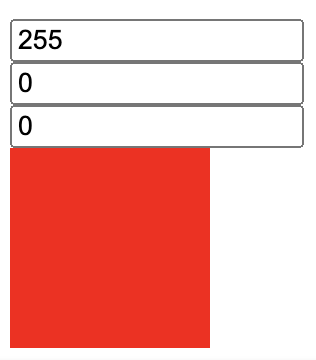
At any time, we show the color corresponding to rgb object using a div tag.

<div
className="rgb-container"
style={{ background: `rgb(${rgb.red},${rgb.green},${rgb.blue})` }}
></div>

Here is the output for our work:

React output

With useReducer()

Now let us see how we can implement the same using useReducer() hook. First step is to import useReducer from React.

import { useReducer } from "react";

Next, here is how we use the hook:

const [rgb, dispatch] = useReducer(reducer, {
red: 0,
green: 0,
blue: 0,
});

useReducer() hook accepts two arguments. One is the reducer function and second one being the initial state. The hook returns the state and a function to dispatch actions.

dispatch() function is invoked whenever we need to update the state. When invoking the function, we need to pass an action. Action is simply an object literal. It needs to have a type property. We can have additional properties also. Example, in our RGB project, to update the value of red color, the action object looks like below:

{
type: "SET_RED",
value: 200
}

Let us add the dispatch() invocation for our 3 textboxes.

<input
type="text"
placeholder="Red"
onChange={(e) => {
dispatch({
type: "SET_RED",
value: e.target.value
});
}}
value={rgb.red}
/>
<br />
<input
type="text"
placeholder="Green"
onChange={(e) => {
dispatch({
type: "SET_GREEN",
value: e.target.value
});
}}
value={rgb.green}
/>
<br />
<input
type="text"
placeholder="Blue"
onChange={(e) => {
dispatch({
type: "SET_BLUE",
value: e.target.value
});
}}
value={rgb.blue}
/>
<br />

Let us do a walkthrough. When we change the value in Green textbox to say 154, onChange() event is fired. The event calls the dispatch() function with an action object. Everytime, when dispatch() is called, it then calls the reducer() function to update the state. The reducer() function always accepts the current state and the passed action object. The value returned by the reducer() function is set as the new state.

In our example, when the reducer function is invoked, the control jumps to SET_GREEN case. There the value of green is updated to 154 and the new state object is returned.

You can see the working demo and code in CodeSandbox.

Setup Webpack Dev Server in React Project

· 2 min read

We have a React project. We can build the project using Webpack. We can then see the output by running the generated bundle. Each time, when we change anything in the code, we need to repeat the build and reload step. That is quite boring and time consuming during development.

Webpack Dev Server helps developers by automatically building the project and reloading the page in browser. So, when we save the code, we can see the change instantly on the browser.

Some Background

I am working on a personal project, which is a Tambola game. I have already:

Next step is to setup Webpack Dev Server in my project. That is what I am documenting here. At any time, you can check the status of my development site here.

Dev Server Setup

First, we need to install webpack-dev-server in our project.

npm install --save webpack-dev-server

Configuration

Next, we need to update webpack.config.js to set dev server options. Append the below code to module.exports.

devServer: {
static: {
directory: path.join(__dirname, 'dist'),
},
compress: true,
port: 9000,
},

Above configuration serves the content from /dist folder.

Running

We want our dev site to run locally on npm run dev command. For that, add a dev script to package.json.

"dev": "webpack-dev-server --open"

The --open flag is to open the site in our default browser.

Try running the dev command. The site will be served from http://localhost:9000. Go and update content of our React component and save the file. Automatically, webpack-dev-server will build and update our page in browser.

Deploy React App to Amazon S3 Using Github Actions

· 4 min read

We are going to setup a development work-flow using which, our code pushed to Github will be automatically deployed to AWS S3.

AWS IAM User

If we need to deploy our React application to AWS, we need to use our AWS credentials. In the same line, if Github needs to deploy our applcation to AWS, it needs valid AWS credentials.

For that, we create an IAM user to be used by Github. This IAM user will only have enough permission to deploy our code.

Here is the link to AWS documentation about creating IAM users.

I created a user with username githubuser. You can give any user name. Only programmatic access is required for this user.

Also, I gave permission only to S3 service. My policy json looks like this:

{
"Version": "2012-10-17",
"Statement": [
{
"Sid": "VisualEditor0",
"Effect": "Allow",
"Action": ["s3:*", "s3-object-lambda:*"],
"Resource": "*"
}
]
}

After creating the IAM user, we will get an Access Key ID and Secret Access. Store it somewhere safe.

Github Secrets

When Github does the deployment for us to AWS S3, it requires AWS credentials which we created. These credentials must be stored somewhere safe, but at the same time accessible to Github actions. Github Secrets is the answer.

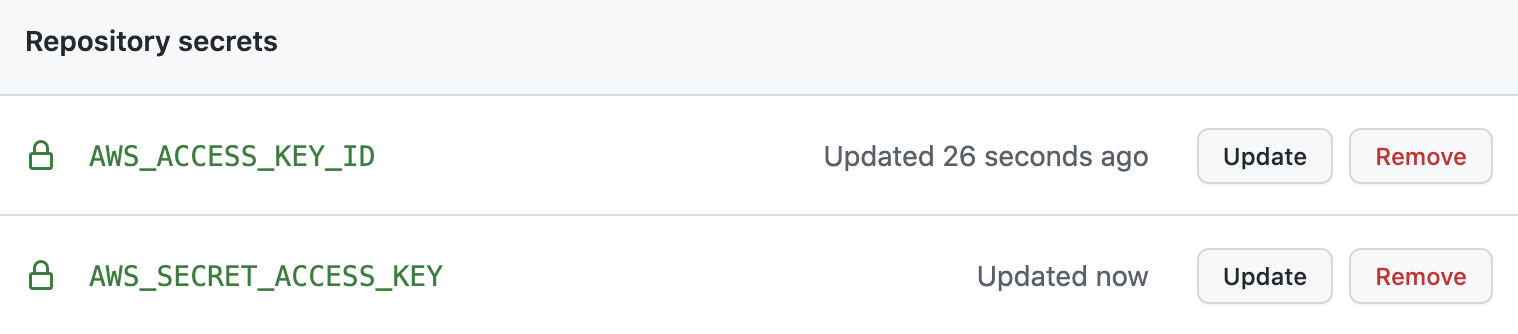
Go to our repo > Settings > Secrets > Actions. Add two repository secrets with name AWS_ACCESS_KEY_ID and AWS_SECRET_ACCESS_KEY. Provide the credential values to each secrets.

Github secrets

We just set two environment variables in Github environment. We will be using those in Github actions.

Github Actions

Our goal is to build and deploy code from dev branch to AWS S3, when code is pushed to dev branch. Github Actions is a CI/CD platform.

To use Github Actions, create a folder .github/workflows in the project root. We write workflows in YAML files. Create dev-build-deploy.yml file under workflows directory. Paste below YAML code:

# Name of workflow as seen in Github actions tab
name: dev-build-and-deploy
# Run workflow only on push to dev branch
on:
push:
branches:
- dev
jobs:
# To build the project
build-tambola:
runs-on: ubuntu-latest
steps:
- name: Checking out code
uses: actions/checkout@v3
- name: Installing Node.js
uses: actions/setup-node@v3
with:
node-version: "16"
- name: Installing dependencies
run: npm install
- name: Building project
run: npm run build
- name: Configure AWS Credentials
uses: aws-actions/configure-aws-credentials@v1
with:
aws-access-key-id: ${{ secrets.AWS_ACCESS_KEY_ID }}
aws-secret-access-key: ${{ secrets.AWS_SECRET_ACCESS_KEY }}
aws-region: us-west-1

- name: Deploy to S3 bucket
run: aws s3 sync ./dist/ s3://dev-tambola --delete

We can see above YAML content as the instructions to Github. Where ever we see name key, that will be used by Github Actions console to show the message.

Here are the different steps defined in the YAML file:

  • Run the workflow only when someone pushes code to dev branch
  • Take a VM with latest Ubuntu OS for running the next steps
  • Checkout the code from dev branch
  • Install Node.js v16 in the VM to enable NPM command
  • Install project dependencies
  • Build the project to create /dist folder with deployable files
  • Configure AWS credentials using aws-actions
  • Upload contents from /dist folder to our S3 bucket

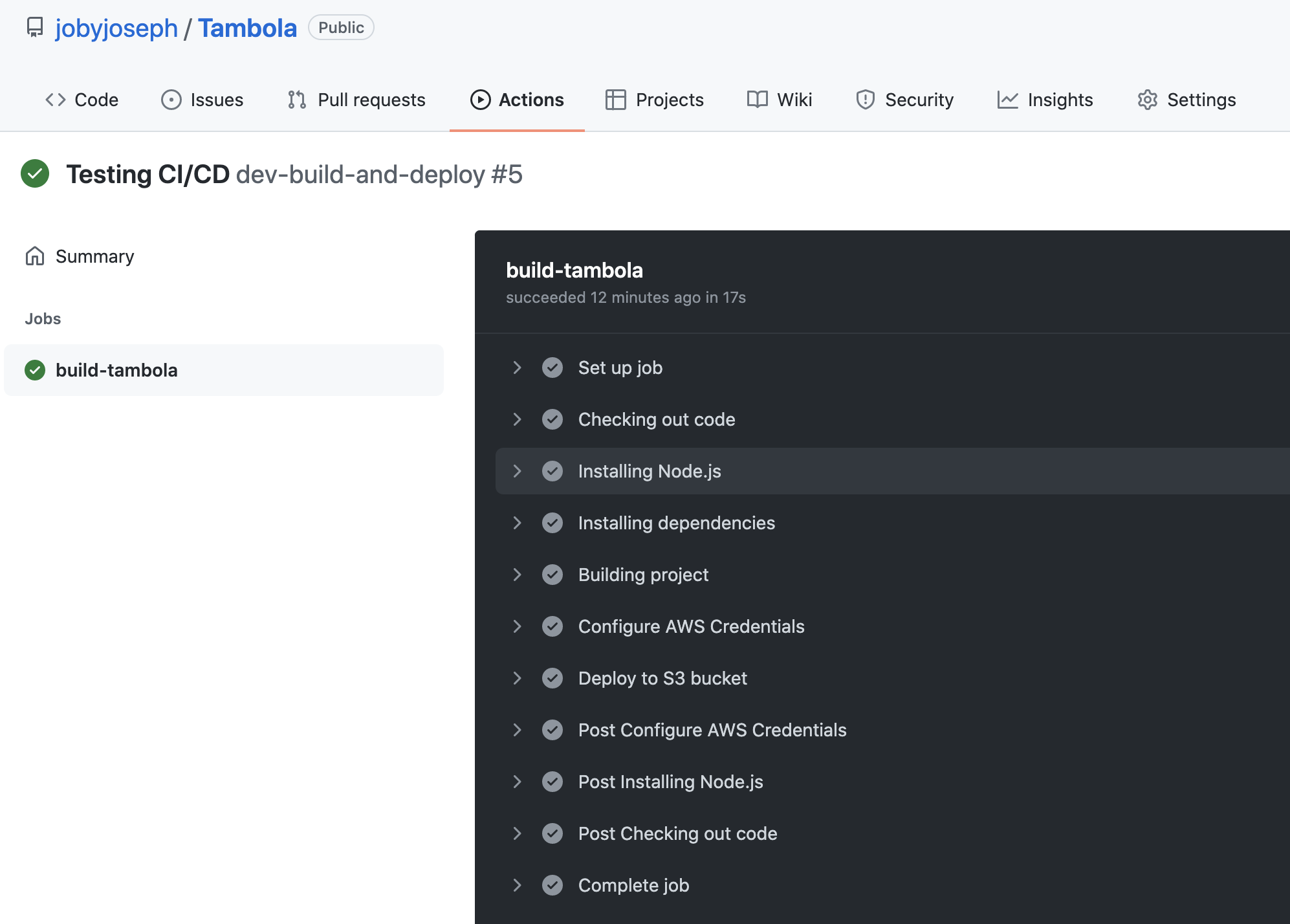
Save the YAML file. Then, push all code to remote dev branch. Immediately, go to Github actions tab in Github site. There we can see our workflow running.

Github actions

Once all the steps are complete, we can see our S3 link updated with latest changes.

Summary

In this article, I hope I could explain things related to:

  • Create AWS IAM user for CI/CD pipelines
  • Store credentials in Github secrets instead of using directly in code
  • Enable Github Actions workflow in a repository
  • Write Github Actions YAML file to define build and deployment rules

useEffect() React Hook

· 5 min read

useEffect() hook brings different life-cycle methods to a functional component. This hook performs side-effects in functional component. If you did not get any idea, do not worry. You can understand in detail by reading below sections.

Import useEffect

useEffect() hook comes as part of react package from React v16.8. In order to use useEffect() in our code, first step is to import it from React package.

import { useEffect } from "react";

useEffect() Arguments

useEffect() hook accepts two arguments, a callback function and an array.

useEffect(() => {
console.log("Callback function");
}, []);

The callback function passed to useEffect() is invoked as a side-effect on change of any state variables.

What all state variables we need to track, that information is passed to the second array argument.

No Dependency Array

We learned that useEffect() accepts two arguments. In that, second argument is called the dependency array. What if we are not passing the second argument?

useEffect(() => {
console.log("Oh! Side-effect is triggered.");
});

Here, since useEffect() does not have any dependency array to check against, it will invoke the callback function on component load and on every state change.

Here is a code which you can try:

import { useEffect, useState } from "react";

export default function () {
const [random, setRandom] = useState();

useEffect(() => {
console.log("Oh! Side-effect is triggered.");
});
const buttonClickHander = () => {
setRandom(Math.random());
};

return <button onClick={buttonClickHander}>Click Me!</button>;
}

Above code updates the value of random state variable on each button click. The "Oh! Side-effect is triggered." message is printed in the console on the component load and on every button click. You can try above code online at CodeSandbox.

Empty Dependency Array

Here, we are passing the second dependency array argument as an empty array([]). That is the way of telling React that, there are no state variables to watch for. Therefore, in this case, the useEffect() callback function will run only once when the component loads.

useEffect(() => {
console.log("Loaded on component load");
}, []);

Above code is equivalent to componentDidMount() lifecycle method in class components.

You can play with useEffect() hook with empty dependency array in CodeSandbox.

Selective Dependency Array

Say, we have two state variables in our component. And, we want useEffect() hook to invoke the callback function, only when one of the state variable changes. In this case, we need to pass only that state variable name to the dependency array.

const [color, setColor] = useState();
const [age, setAge] = useState();

useEffect(() => {
console.log("Color changed!");
}, [color]);

Here is the full component code which changes the color and age values through a button click.

import React, { useEffect, useState } from "react";

export default function () {
const [color, setColor] = useState();
const [age, setAge] = useState();

useEffect(() => {
console.log("Color changed!");
}, [color]);

const colorClickHander = () => {
setColor(Math.random());
};

const ageClickHander = () => {
setAge(Math.random());
};

return (
<div>
<button onClick={colorClickHander}>Change Color</button>
<button onClick={ageClickHander}>Change Age</button>
</div>
);
}

Since we are tracking only the color variable, changing the value of age does not have any side effect.

When the above component loads, it prints the "Color changed!" message once. Later, we can see the message logged again only when the value of color changes.

Async Callback Function

What if we need to use await inside useEffect() callback function? Here is how the code we wish to write:

useEffect(async () => {
console.log("hi");
// do something with await
}, []);

Before trying async in your code, ensure that @babel/plugin-transform-runtime is installed and configured in .babelrc file.

Using async directly in the callback function is NOT allowed by React. It throws a very detailed error along with a solution approach.

Warning: useEffect must not return anything besides a function, which is used for clean-up.

It looks like you wrote useEffect(async () => ...) or returned a Promise. Instead, write the async function inside your effect and call it immediately

As suggested in the error message, we can go for an IIFE inside the effect to achieve our goal:

useEffect(() => {
(async () => {
console.log("hi");
})();
}, []);

Callback Returning a Function

In class components, there is a lifecycle method called ComponentDidUnmount(). The method is fired when a component is removed from the DOM. Usually, some logic like clearing a timer is executed inside this lifecycle method. Now the question is, how can we bring that lifecycle method to a functional component?

As we just learned, useEffect() accepts a callback function and a dependency array. Usually the callback function returns undefined. Instead, we are going to return a function now:

useEffect(() => {
return () => {
console.log("The returned function");
};
}, []);

This returned function is invoked when the component is removed from the DOM.

In order to test this, we need to write a logic in the parent Component to hide this component based on some condition.

const App = () => {
const [showComponent, setShowComponent] = useState(true);

return (
<div>
{showComponent && <MyComponent />}
<br />
<button
onClick={() => {
setShowComponent(false);
}}
>
Hide
</button>
</div>
);
};

As we can see, in the parent component, we are hiding our component when the button is clicked. So, when user clicks on the button, we can see "The returned function" in the browser console.

Some of the cases that might need componentDidUnmount are clearing timers, unsubscribe RxJS events or websocket events, detach event handlers.

You can see the working code online at CodeSandbox.

useState() React Hook

· 2 min read

useState() hook brings state to a functional component. Since it is a hook, it can only be used inside a functional component.

Import

In order to use useState() hook, first we need to import it from react package.

import { useState } from "react";

Create State Variable

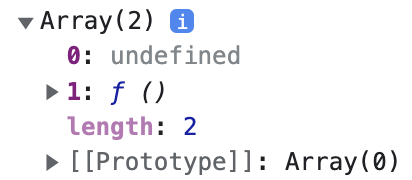
useState() hook returns an array with 2 elements. First element is the initial state value. Second element is a function that can update the state.

const arr = useState();
console.log(arr);

Here is the output.

useState response

Usually, in code, we assign the state variable and the setter function to new variables using destructuring. If we need a state variable to store color information, we can create it like below:

const [color, setColor] = useState();

Default State Value

We can pass an argument to useState() which turns to be the initial state value. In the above example, if the state variable color needs to be set with "black" initially, we can update the code as below:

const [color, setColor] = useState("black");

By default, if we do not pass any initial state value, undefined is assigned to color.

Updating State

setColor is a function. Invoking that function with a new state value, updates the state.

setColor("red");

Each time setColor() is called or in other words, each time when the state is updated, the component is re-rendered.

import { useState } from "react";

export default function App() {
const [color, setColor] = useState("orange");

return (
<button
onClick={() => {
setColor("red");
}}
style={{ backgroundColor: color }}
>
Change Color
</button>
);
}

Above code sets "orange" as the default color. On click of the button, the state value is changed to "red". You can try the code online in CodeSandbox.

Multiple State Values

We can declare more than one state variables inside a functional component using multiple useState() invokations.

const [color, setColor] = useState();
const [width, setWidth] = useState();
const [interest, setInterest] = useState();

How To Use ESLint With Prettier And React

· 2 min read

ESLint is a opinionated code quality tool. If Prettier is concentrating on the style and formatting of code, ESLint takes care of the quality of the code. For example, if there is an unused variable in code, ESLint throws an error, but Prettier does not have any issue.

There are few areas like spacing which both ESLint and Prettier check. We have ways to handle such issues with only Prettier. Thereby we keep all style related changes assigned to Prettier.

Installation

We assume that prettier package is already installed and setup. On top of that, we need to now install eslint and eslint-config-prettier.

npm install -D eslint@7.18.0 eslint-config-prettier@8.1.0

Setup

Create a .eslintrc.json file in project root folder. Fill the file with below content.

{
"extends": ["eslint:recommended", "prettier"],
"plugins": [],
"parserOptions": {
"ecmaVersion": 2021,
"sourceType": "module",
"ecmaFeatures": {
"jsx": true
}
},
"env": {
"es6": true,
"browser": true,
"node": true
}
}

The order of extends array matters. The first element, "eslint:recommended" turns on a set of rules, including white space rules. The second element, "prettier" turns off any eslint rules which prettier needs to handle. Like that, prettier gains control back from eslint.

Since we are not using any plugins, we gave [] as the value of plugins.

parserOptions specifies the kind of parser to be used. We gave ecmaVersion as 2021. So, that covers all latest syntax. We have also specified jsx syntax for the parser to consider.

"env" tells eslint, in what all environments the code will run. If we set es6 to true, eslint respects keywords like let, arrow functions and other new ES6 syntax. browser environment tells eslint that there will be global variables like window or document. node environment tells eslint to expect keywords like process and global. If we do not specify the environment, eslint throws error when it sees variables like window.

Running ESLint

In order to run ESLint, we can add a command in package.json.

 "scripts": {
"format": "prettier --write \"src/**/*.{js,jsx}\"",
"lint": "eslint \"src/**/*.{js,jsx}\" --quiet" // highlight-line
},

Now, let us run our lint command.

npm run lint

If everything goes well, ESlint shows error in terminal if any. Examples of errors can be React not declared, unused variables and so on. As we can see ESLint checks for code logic and suggests areas of improvement.

How To Use Prettier In React Project

· 2 min read

When working with multiple team members in a project, it will be nice to have everyone following a uniform style guide. For example, everyone ends a JavaScript statement with a semicolon, provide exactly 2 spaces for tabs and so on. Prettier is a tool which helps us in ensuring common style guide. It is an automatic code formatter.

Installation

If our project folder is not a Node package, make it as a node package by setting up package.json. For that, go to the project folder in terminal and run:

npm init -y

Then, install prettier package as a dev dependency.

npm install -D prettier

If we are using Visual Studio Code, we might already be using prettier extension. But, having a prettier setup like we are doing helps other developers to run prettier with a simple command.

Setup

In the project root folder, create a file with name .prettierrc. Prettier by default has a set of formatting rules. If we need to customize those rules, we can write our own rules in this file. If we are fine with the default rules, just provide an empty object in the .prettierrc file.

{}

We can find all the options available for prettier configuration in this link.

Next, we need to add a command in package.json to run prettier. For that, under scripts object in package.json, add the following command.

"scripts": {
"format": "prettier --write \"src/**/*.{js,jsx}\""
},

The long command is to format any js or jsx files under src folder. The --write flag tells prettier to overwrite the actual files with formatted code.

Run

Before testing the command, we need a file to test. For that, create a test.js file in /src folder. Fill the file with below content.

const person = {
name: "Joby",
age: 36,
gender: "Male",
location: "Cochin",
ssn: 123456789,
};

We wrote the code in one line. Now go to terminal and run:

npm run format

Above command runs prettier code and formats test.js file. Here is the updated content:

const person = {
name: "Joby",
age: 36,
gender: "Male",
location: "Cochin",
ssn: 123456789,
};

If we are using prettier extension in Visual Studio Code, we can tell VS Code to honour the prettier configuration in our project. In that way, when each time we save a file, VS code can automatically format our code based on our project guidelines.

Insert More Than One Child Component Using React.createElement()

· One min read

As React developers, we mainly work with JSX. But, after transpiling the code, JSX is entirely converted to pure JavaScript. Each component is created using React.createElement().

Consider the following code in JSX. It has a parent tag with 3 children.

<Student>
<Name>John Doe</Name>
<Age>36</Age>
<Gender>Male</Gender>
</Student>

We can see the output of JSX to JavaScript here. Here is the output:

"use strict";

/*#__PURE__*/
React.createElement(
Student,
null,
/*#__PURE__*/ React.createElement(Name, null, "John Doe"),
/*#__PURE__*/ React.createElement(Age, null, "36"),
/*#__PURE__*/ React.createElement(Gender, null, "Male"),
);

As we can see, each child is passed to the parent React.createElement() method as an argument. So, in this case we had to pass total 5 arguments to the parent createElement() invocation.

We can also pass the three children as an array. That means, we are passing only 3 arguments in total and the third argument is an array.

"use strict";

/*#__PURE__*/
React.createElement(Student, null, [
/*#__PURE__*/ React.createElement(Name, null, "John Doe"),
/*#__PURE__*/ React.createElement(Age, null, "36"),
/*#__PURE__*/ React.createElement(Gender, null, "Male"),
]);

This is how we can use React.createElement() to pass multiple child components.